
This is the documentation of version 0.9.1. The newest version is 0.9.2: go to the newest documentation
User guide
1. What Loonar Compass is
Loonar Compass is a standalone Windows desktop application: an AI assistant for working with an Enterprise Architect model (Sparx Systems). You write to it in plain language, and it:
- reads the model (packages, elements, diagrams, connectors, attributes and operations) and describes what is in it,
- analyzes the model: the impact of changing an element on the rest of the model, where operations are used, elements without connectors,
- changes the model: creates packages, diagrams, elements and connectors, adds attributes and operations to classes, sets keywords and tagged values, lays out elements on diagrams, moves them, removes an element from a diagram, deletes objects from the model, colors them, adds legends, copies packages and creates baselines of them,
- keeps the EA project glossary (terms with their meaning and type) and structured scenarios of elements (actor and system steps),
- draws diagrams from a description, a photo, a sketch or an attached file,
- shows diagrams as images in the chat, just as Enterprise Architect draws them,
- prepares documents from the model's content: Word, Excel, PowerPoint, PDF, PNG images and Confluence pages, also based on templates,
- reads documents: PDF, Word, PowerPoint, Visio and Excel, from your disk or from the team's SharePoint library,
- follows the team's modelling instructions kept in the EA repository itself, so everybody who works with the repository uses the same rules,
- remembers notes between conversations (modeling conventions, preferences, corrections).
The application uses an AI language model over the Internet, with your API key: Claude Haiku 5.5 (Anthropic) by default; in the settings you can choose another Claude model or an OpenAI model (chapter 5). It connects to the EA model in two ways: it reads it directly (from a PostgreSQL, SQL Server, MySQL/MariaDB or Oracle database, or from the .qea/.qeax file) and writes to it through Enterprise Architect, using the model user account given in the settings when the model has one. With a model file you have open in EA, the changes go through your EA window; otherwise EA runs in the background.
The interface and the assistant's answers are available in four languages: Polish, English, German and French (chapter 5). Answers and changes are prepared by an AI model and may contain errors: review them before you approve them (chapter 16).
Loonar Compass runs as a separate window, started from the Start menu, or as a window docked in Enterprise Architect itself, which works with the project open in that EA window (chapter 10).
Without a window, Compass also checks the model in CI pipelines (chapter 23), and the separate program Compass Hub serves the team's models to people and tools (chapter 22).
4. Application window and navigation
On the left side of the window there is a navy-blue navigation bar with icons. When you hover the mouse over an icon, its name appears. Clicking switches the view.
| Icon | What it contains |
|---|---|
| Chat | The list of conversations and the conversation with the assistant (chapters 6 and 17) |
| Settings | AI model, EA model, Enterprise Architect, language and approval mode, new releases, Confluence, Jira, SharePoint, event agents, MCP servers, team hub, Miro (chapter 5) |
| Assistant memory | Notes the assistant has remembered between conversations (chapter 15) |
| Document templates | Document templates that the assistant fills with content from the model (chapter 14) |
| Model audit log | The assistant's saves to the model, with export to Excel (chapter 16) |
| Changelog | The list of features and known limitations of each version |
| Report a bug | A bug report form with images (chapter 20) |
| Usage statistics | What the application sends anonymously, today’s summary, the log of what was sent in the last 30 days, switching off and a new installation id (chapter 18) |
| Support the project (heart icon, at the bottom of the bar) | Voluntary support for the development of the application, links to GitHub and loonar.eu |
| About (at the very bottom of the bar) | Version, application owner, links (privacy policy, source code on GitHub, loonar.eu), trademark notice, license text and the licenses of the open-source components (chapter 24) |
An orange “!” on the Settings, Assistant memory and Document templates icons means that after a language change the translation has not finished yet (chapter 5).
Support the project. Loonar Compass is free, also for commercial use, and it will stay free. If it saves you time, you can support its development with a voluntary contribution: the Support on suppi.pl button opens suppi.pl/loonar. The contributions pay, among other things, for a code-signing certificate. Other ways to help: report bugs and ideas (Report a bug), recommend the application to other Enterprise Architect users or star the project on GitHub.
Chat view
- The list of conversations on the left is grouped into “Today”, “Yesterday”, “Last 7 days” and “Earlier”. You start a new conversation with the + button. The selected conversation is highlighted. Right-click a conversation to delete it (chapter 17).
- The conversation header shows its title, the Model: … button with the model of the conversation (chapter 17) and, while the assistant is working, the “The assistant is working” indicator.
- Messages: yours are in a beige bubble, the assistant's answers have the application icon. Each message shows the time (older ones also the date).
- The new conversation screen shows the logo, a hint about what you can do, and which EA model the conversation will use, with the Choose another model… and Confirm the model and start buttons (chapter 17).
- The message card at the bottom: the text field, the paste button, the ⌖ button (pick from the model), with Claude also the 💭 (reasoning) and ∑ (code in the sandbox) switches, the model and approval mode, and the round send and stop buttons (chapter 6). Below the card, a reminder says that answers and changes are prepared by an AI model.
5. Settings and language
The Settings view has twelve cards: AI model and Language and change approval in the left column, Model and Enterprise Architect in the right one, and below them Confluence, Jira, SharePoint, Event agents (Compass in EA), MCP servers, Team (Compass Hub), Miro and New releases (newsletter). In Compass opened in Enterprise Architect, there are no Model and Enterprise Architect cards, because the model is the project open in that EA window (chapter 10). You save each card separately with the button below the card, and the application immediately checks that the details work. The result appears below the button: green with a description or red with the cause of the error.
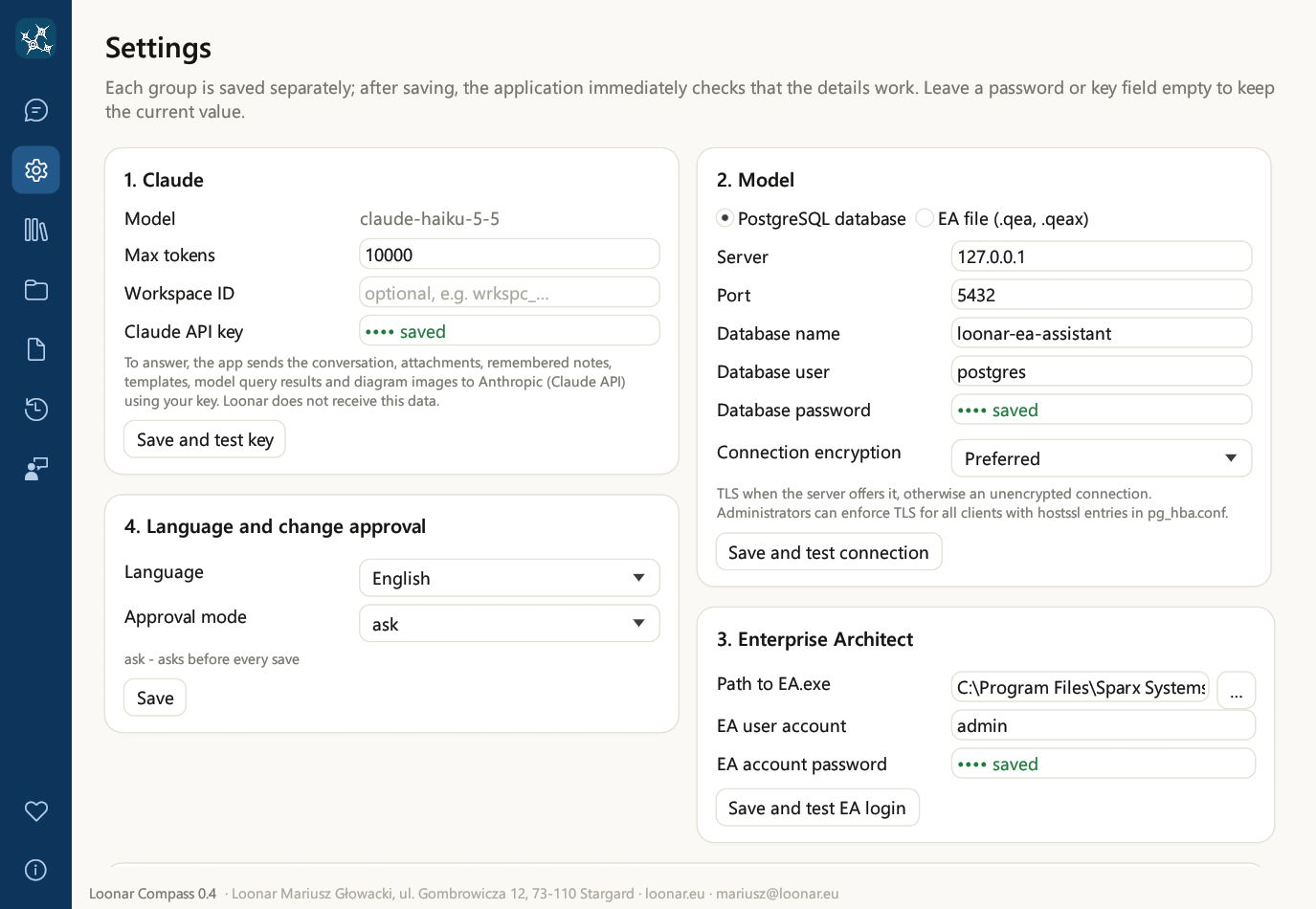
| Card | Fields | What the test checks |
|---|---|---|
| AI model | Provider, Model, Effort, Max tokens, Workspace ID and Claude address (Claude only), OAuth2 token address (with the OAuth2 client ID, scope and client secret) and the API key of the chosen provider: Claude API key or OpenAI API key (described below). A note below the fields says what the application sends to the provider (chapter 18). | “Save and test key” checks the key with a short request to the chosen model |
| Model | Choice: PostgreSQL database, SQL Server, MySQL or Oracle (Server, Port, Database name, Database user, Database password stored in Windows Credential Manager, Connection encryption; described below) or EA file (.qea, .qeax) (Model file; the … button opens a file selection dialog). Below, the model's EA account: the checkbox “The model has security enabled (EA user accounts)”, EA user account and EA account password (without the checkbox, both fields are disabled and EA opens the model without a login), and the option “The model requires a lock to edit (Require User Lock to Edit)”: when on, the assistant locks the packages and elements it changes and releases the locks afterwards; without it, it locks nothing. | Database: “Save and test connection” connects, counts packages, elements and diagrams and, for PostgreSQL, says whether the connection is encrypted and warns if the database user is a superuser. File: “Save and test the file” opens it read-only and counts packages, elements and diagrams. The test also saves a test package in the model, checks it and deletes it at once |
| Source code | Source code folders: local repository clones the assistant reads without asking (list, search, read files; read only), separated by “;”; the … button adds a folder. Any other folder the assistant asks about first. The card is also shown in the EA tab. | “Save and check the folders” checks that the folders exist |
| Enterprise Architect | Path to EA.exe (the … button opens a file selection dialog). The EA account is set on the Model card, because it belongs to the model file or database. | “Save and test EA access” opens the model in EA (a model file you have open: in your EA window), logs in with the account from the Model card, saves a test package in the model, checks it and deletes it at once (from a few to over ten seconds) |
| Language and change approval | Language; Approval mode: ask, plan or auto (chapter 16); after a language change, also the Translate now button | Saving only |
| New releases (newsletter) | Email address and consent to news about new releases, with an information note and a link to the privacy policy (chapter 20) | Prepares a message in the mail program |
| Confluence | Confluence address, Email (Cloud only), Token, Space key, Parent page ID (chapter 13). The address must start with https:// (http:// only for a server on the same computer). | Connects to Confluence with the given token and checks the space |
| Miro | Access token of a Miro app with the boards:read and boards:write permissions (chapter 12) | Connects to Miro and counts the boards the token can see |
| Jira | Jira address, Email (Cloud only), Token, Default project key, Client certificate, Certificate password (chapter 7). The address must start with https://. | “Save and test Jira connection” connects to Jira and checks the project |
| SharePoint | Site address, Document library (empty = Documents), Tenant (directory) ID, Application (client) ID, Client secret (chapter 13) | “Save and test SharePoint connection” signs in to Microsoft Graph and counts the items in the library |
| OneDrive | Application (client) ID of an app registration in Entra ID as a public client (“Mobile and desktop applications”, redirect URI http://localhost, delegated permissions Files.ReadWrite and User.Read), Tenant (organizations, consumers for a private account, or your tenant) | “Save, sign in and test OneDrive” opens the Microsoft sign-in in the browser once and counts the items in the root folder; the assistant can then list, read and (each time with your consent) upload |
| Google Drive | Client ID and Client secret of an OAuth client of the type “Desktop app” in a Google Cloud project with the Google Drive API enabled | “Save, sign in and test Google Drive” opens the Google sign-in in the browser once; the assistant can then list, read (also Google Docs, Sheets and Slides) and (each time with your consent) upload |
| Team (Compass Hub) | Hub address, Token, This model in the hub (optional) (chapter 22) | “Save and test hub connection” connects to the hub and shows your account, role and the team policy |
| MCP servers | The list of your own MCP servers, stored in the file mcp_servers.json next to the settings, the list Add a ready-made server and the field Token for an MCP server (chapter 7) | “Save and test MCP servers” connects to each server and shows the number of its tools |
| Event agents (Compass in EA) | Rules in the file event_agents.json (chapter 10) | “Save event agents” checks the rules and shows the number of agents |
An empty password or key field means “no change”. The label saved next to a field indicates that the value is already stored. The API keys, the passwords and the Confluence and Miro tokens are kept in Windows Credential Manager, never in the settings file. The database password must not contain a semicolon (;), because Enterprise Architect cannot pass it in its connection string.
Default values. When there are no settings yet, the server, database name, EA user account and password fields are empty (the Server field shows the gray hint “e.g. 127.0.0.1”), the port is 5432, the database user is postgres, the path to EA.exe is C:\Program Files\Sparx Systems\EA\EA.exe, the approval mode is ask, the provider is Anthropic (Claude), the model is claude-haiku-5-5, the effort is “model default” and Max tokens is 10000. Existing settings are not changed.
Max tokens. If the assistant stops working with a message about a truncated answer, increase this value (for example to 20000). The limit costs nothing by itself: you pay for the text actually generated.
Locking of packages and elements while saving depends on the option “The model requires a lock to edit (Require User Lock to Edit)” on the Model card: select it when the model has “Require User Lock to Edit” turned on in EA.
AI model: provider, model and effort
The AI model card decides which language model answers in the conversations:
| Field | Meaning |
|---|---|
| Provider | Anthropic (Claude) (default) or OpenAI. |
| Model | A text field with a ▾ list. Claude: claude-haiku-5-5 (default), claude-sonnet-5-5, claude-opus-5-5, claude-fable-5-1. OpenAI: gpt-5.1, gpt-5, gpt-5-mini. You can also type the id of any other model of the chosen provider. |
| Effort | model default (default), low, medium, high, xhigh or max. Higher effort gives more thorough answers and model work, but uses more tokens and time, so it costs more; lower effort is faster and cheaper. With OpenAI, the effort maps to the model's reasoning effort. |
| Max tokens | The length limit of a single model answer (see below). |
| Workspace ID | Claude only, optional: the ID of a workspace from the Anthropic Console, for example wrkspc_…. |
| Claude address, OAuth2 token address | Optional: Claude through Azure AI Foundry or a company gateway, and sign-in with OAuth2 instead of an API key (see “Sign-in to the AI service” below). |
| Endpoint | OpenAI only. Empty = OpenAI. You can enter the address of another server compatible with the OpenAI API: Azure OpenAI (https://<resource>.openai.azure.com/openai/v1; the key is sent in the api-key header), Ollama (http://localhost:11434/v1), LM Studio (http://localhost:1234/v1) or a company gateway. Local servers work without a key, and http:// is allowed only for localhost. In the Model field enter the model name (in Azure: the deployment name). |
| Claude API key / OpenAI API key | The key of the chosen provider. You create a Claude key in the Anthropic Console. You create an OpenAI key on the OpenAI platform: platform.openai.com → API keys → Create new secret key. The keys are stored in Windows Credential Manager, each separately. |
Save and test key checks the key with a short request to the chosen model. The data needed for the answers goes only to the chosen provider: to api.anthropic.com or to api.openai.com (chapter 18). If you change nothing on this card, the application works exactly as before: with Claude Haiku 5.5 and the model default effort. Larger models and higher effort cost more; Anthropic and OpenAI publish their prices.
Changing the language
The application works in four languages: Polish, English, German and French. You choose the language in the installer (English by default) and change it on the “Language and change approval” card:
- Choose a language from the Language list.
- Click Save. The interface switches to the new language, and the assistant answers in it from the next message.
- The application carries your content over to the new language: it replaces untouched default templates with the versions in the new language, and the assistant's memory and your own and modified templates are translated by the AI model.
Only the memory and the templates are translated. Conversation history is never translated: conversations stay in the language in which you held them.
When you save the language, Compass also switches EA's own spell checker to that language, if EA has a dictionary for it. EA comes with English dictionaries only, so for other languages Compass checks the texts itself (chapter 7, “Spelling in the language of Compass”).
Database connection encryption
The Connection encryption field on the “Model” card (PostgreSQL database) decides whether the assistant reads the model over TLS:
| Setting | Effect |
|---|---|
| Preferred (default) | TLS when the server offers it; otherwise an unencrypted connection. Works with any server. |
| Required | TLS is required: without it the application does not connect. The server certificate is not verified. |
| Required, certificate verified | TLS is required, and the server certificate is verified against the Windows certificate store (including company certificates), together with the server name. |
- The connection test says whether the connection is encrypted: “The connection is encrypted (TLS).” or “The connection is NOT encrypted: the server does not offer TLS.”.
- With certificate verification, the name in the Server field must match the name in the server certificate.
- The database administrator can enforce TLS for all clients with
hostsslentries in thepg_hba.conffile. - The setting applies to the assistant's reading of the model. Enterprise Architect's own connection to the database (when saving) follows EA's settings.
- With SQL Server, the setting goes to the ODBC driver (“Required”: encrypted, the certificate is not verified; “Required, certificate verified”: encrypted and verified). With MySQL and Oracle, set the encryption in the driver or in
db.odbc(below).
SQL Server, MySQL and Oracle
Besides PostgreSQL and EA files, Compass reads EA repositories on SQL Server, MySQL/MariaDB and Oracle: in the separate window, in the team hub (chapter 22) and in check mode (chapter 23). On the Model card choose SQL Server, MySQL or Oracle and fill in the same fields as for PostgreSQL; the port changes to the usual one of that database (1433, 3306, 1521) unless you have changed it yourself. The model of a conversation (chapter 17) can be such a database too.
- ODBC driver. Compass connects through the 64-bit ODBC driver of the database vendor and finds it by itself. For SQL Server it takes “ODBC Driver 18 for SQL Server”, then 17, and at the end Windows' own “SQL Server” driver. For MySQL the MySQL or MariaDB ODBC driver, for Oracle the Oracle client's driver (“Oracle in …”). If none is installed, the test names the drivers that are.
- Your own connection string. When the connection needs something the card does not have (for example an Oracle TNS name or driver options), put a full ODBC connection string in
app.propertiesasdb.odbc, without the password: Compass adds the password from Credential Manager. Example:db.odbc=Driver={ODBC Driver 18 for SQL Server};Server=sql01,1433;Database=ea;UID=compass;Encrypt=yes. - Read only. Reading runs in a transaction that is always rolled back, so nothing is changed in the database by Compass itself. An account with SELECT on the EA tables (
t_*) is enough for reading; when Enterprise Architect saves with the same account (SQL Server, below), it also needs INSERT, UPDATE and DELETE on these tables.
Saving. Changes of such a model are saved by Enterprise Architect, as with PostgreSQL. Your edition of EA must support DBMS repositories.
- SQL Server: Compass builds EA's own connection by itself (OLE DB provider SQLOLEDB), from the fields of the Model card. Test it with “Save and test EA access”.
- MySQL and Oracle: EA reaches them through an ODBC data source. Put EA's connection in
app.propertiesasea.conn: the text of an EA connection shortcut, for exampleea_lab --- DBType=0;Connect=Provider=MSDASQL.1;Data Source=<ODBC DSN>;…. Withoutea.conn, use Compass in Enterprise Architect (chapter 10) for changes: it saves through your EA window, which works with any repository open in EA.
In app.properties the choice is model.source=sqlserver, mysql or oracle (postgres and file as before), with db.host, db.port, db.name, db.user and db.sslmode.
Sign-in to the AI service: OAuth2 and other addresses
Some companies give access to the AI model through their own gateway or through Microsoft Azure instead of an API key. The AI model card has fields for this:
| Field | Meaning |
|---|---|
| Claude address | Claude only: empty = Anthropic; Azure AI Foundry or a company gateway: its base address, for example https://<resource>.services.ai.azure.com/anthropic. It must start with https:// (http:// only on this computer). |
| OAuth2 token address | Optional, instead of an API key: Compass gets a token from this address (OAuth2 client credentials) and sends it instead of the key, for Claude and for OpenAI. For Microsoft Entra ID: https://login.microsoftonline.com/<tenant>/oauth2/v2.0/token. |
| OAuth2 client ID, OAuth2 scope, OAuth2 client secret | Shown when the token address is filled in: the ID and secret of the application registered at the provider, and the scope, for example https://cognitiveservices.azure.com/.default. The secret is stored in Windows Credential Manager. |
The fields are saved as claude.url, ai.oauth.token_url, ai.oauth.client_id and ai.oauth.scope in app.properties. Test them with Save and test key.
6. Talking to the assistant
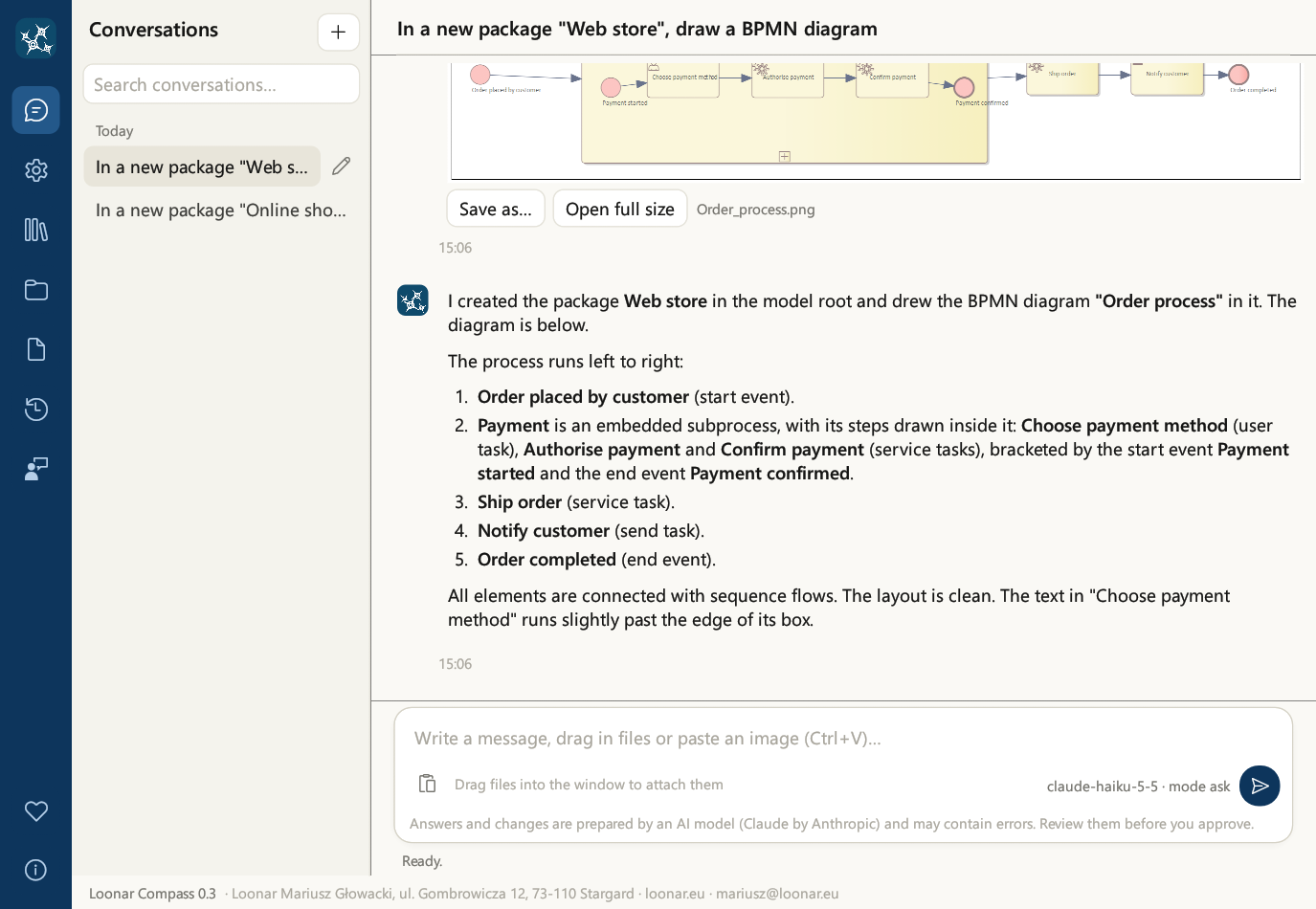
Writing
You type a message in the message card at the bottom of the window. The card contains the text field, the paste button, the ⌖ button (Pick from the model, described below), with Claude also the switches 💭 and ∑ (“Reasoning and calculations” below), the model name and the current approval mode, and round buttons: Send and, while the assistant is working, Stop. Below the card you see the reminder: “Answers and changes are prepared by an AI model and may contain errors. Review them before you approve.”
| Key | Action |
|---|---|
| Enter | Sends the message |
| Shift + Enter | New line in the message |
| ↑ in an empty field | Recalls your last message from this conversation; further presses go back to earlier ones, ↓ goes forward again |
| Ctrl + V | Pastes text, and when the clipboard contains an image or files, adds them as attachments |
The message field grows with the text. Spelling errors are underlined in red using the Windows system dictionary, in the language from the system settings. Right-click an underlined word and choose Add “…” to the dictionary: the word goes into the Windows dictionary, and a Polish expression goes in with all its forms (singular and plural, from the nominative to the vocative). In the same menu, Add “…” to the EA project glossary asks the assistant to add the term to the project glossary (chapter 7).
Pick from the model
The ⌖ button next to the paste button opens Pick from the model. Type a part of the name of an element, package or diagram in the field “Name of an element, package or diagram”; with an empty field you see the “Top packages of the model:”. Click a result to add it to the message as a reference, for example «Element: Order (Class, id 26)». It is the same reference as the one EA's right-click menu Add to the Compass conversation gives (chapter 10), so the assistant knows exactly which object you mean.
Attachments
You can attach up to 5 files to a message, each up to 10 MB. Ways to do it: drag files into the window (from Explorer or from a browser), paste them from the clipboard (Ctrl + V) or use the paste button in the message card.
| File type | What the assistant sees |
|---|---|
| Images (PNG, JPG) | The image: a photo of a whiteboard, a sketch, a screenshot |
| Images (GIF, WebP) | The image; in the chat, such an attachment is shown as a file card, not as an image |
| The whole document, every page; also a scan without a text layer, whose pages the model reads as images | |
| Word (DOCX) | The text of the document |
| PowerPoint (PPTX, PPTM) | Each slide with its text and its notes |
| Visio (VSDX, VSDM) | Each page: the shapes with their text and the connections between them (A → B), for example a process to model in EA |
| Excel (XLSX, XLSM) | Each sheet with the values of its cells |
| Text files (BPMN, XML, CSV, JSON, code…) | The content of the file; the file must be saved in UTF-8 |
| Old formats DOC, PPT, XLS, VSD | Not read: open the file in Word, PowerPoint, Excel or Visio and save it in the new format (DOCX, PPTX, XLSX, VSDX) |
| Other binary files | Not read: the assistant only learns that the content of the file cannot be passed to it |
| ZIP | The files inside it, each according to its type: at most 20 files and 30 MB in total; a ZIP inside a ZIP is not unpacked |
While the assistant is working
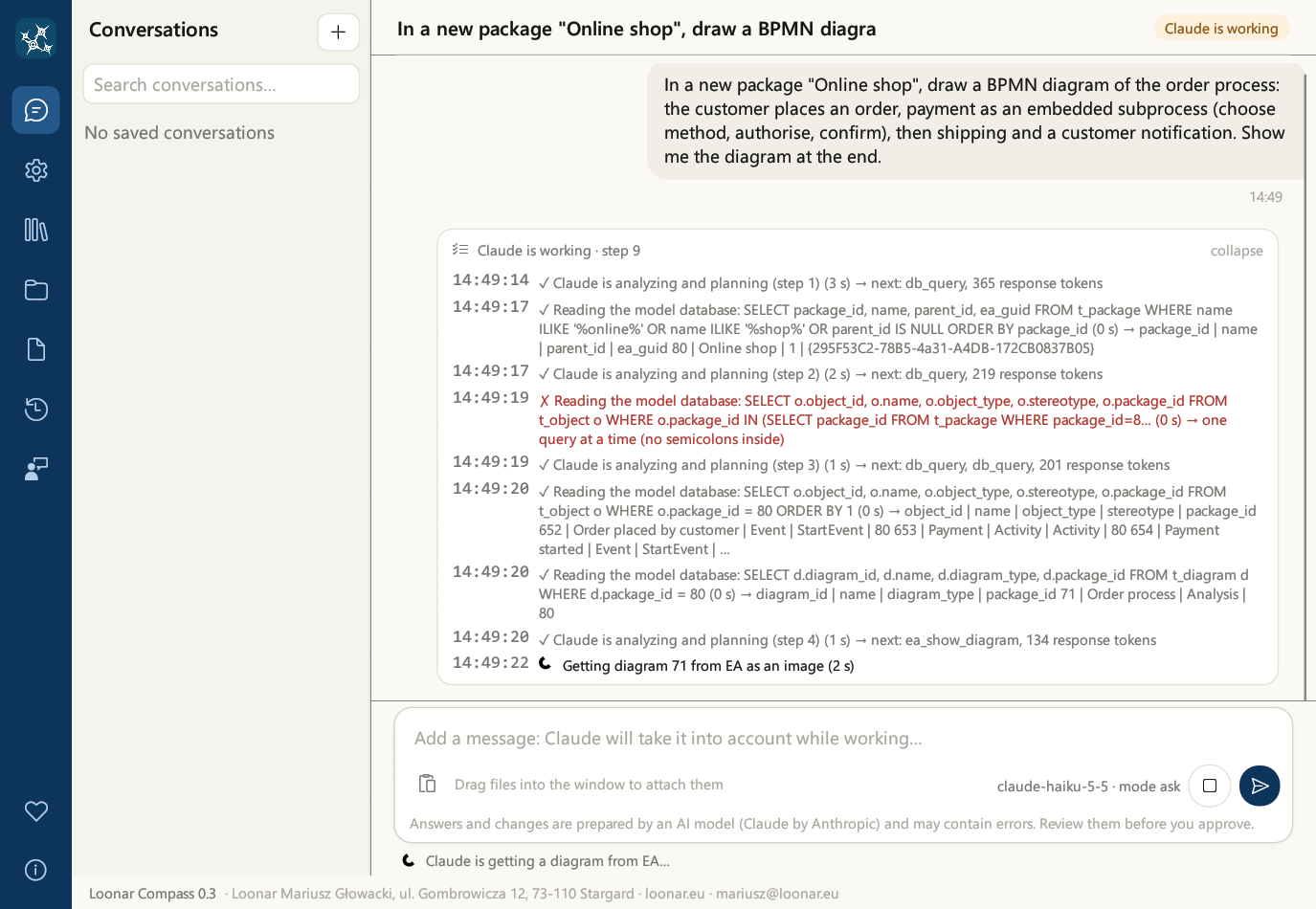
- Below the messages you see the steps card: what the assistant is doing right now, how long it takes and a short result of each step (in Polish, German and French the short results are translated, and the technical details stay in English). While the assistant is working, the card is expanded, and when it finishes, it collapses to a single line; clicking the card header expands it again.
- You can keep writing: the next message goes into a queue and the assistant takes it into account at the next step, without interrupting its work.
- The Stop button stops the work after the current step. A step that is already running (for example saving to EA) is completed.
- An answer can take at most 24 steps. If the assistant has not finished by then, it stops so as not to run in an endless loop; send a new message (for example “continue”) to carry on.
Rating answers and reports from the chat
Under every answer of the assistant there are the buttons 👍 and 👎. After 👎, choose a reason: “Wrong or inaccurate answer”, “Not what I asked for”, “Too slow” or “A mistake in the model”. The same menu has “Report a problem with this answer”: it opens the report form (chapter 20) with the subject filled in and the reported answer attached. Ratings go only to the usage statistics, if they are on, and help decide what to improve first.
When you ask for something the assistant cannot do (for example an unsupported file format or integration), it says so plainly and suggests what it can do instead. Under such an answer there is the button “💡 Request this feature”: it opens the report form with the subject “Feature request: …”, where you describe what you need. The request goes to GitHub as an idea.
Questions, plan and sub-agents
- Clarifying questions. When something important is unclear before a larger change (which package, which notation, naming, scope), the assistant does not guess: it shows a small form “Questions to you” in the chat, with choices or a field for a short answer. A choice can be replaced by your own text in the field “Something else…”. Send answers sends them as your next message, starting with “My answers:”, and the assistant carries on.
- Plan of larger work. For work with three or more steps, the assistant shows its plan in the steps card, for example “📋 Plan: 1 of 4 done”, with the tasks marked ✓ (done), ▶ (in progress) and ○ (waiting). The plan is updated as it works; in Compass in EA it also appears in System Output (chapter 10).
- Sub-agents. For a larger analysis the assistant can hand a focused task to a sub-agent: impact (what a planned change affects), review (a package, a draft or planned changes against good practice and the team's instructions) or document (a draft text of a document section). The sub-agent only reads the model, in its own context, and returns a compact result, so the conversation stays short. The step shows “Sub-agent (impact): …”.
Reasoning and calculations
Two switches in the message card work with Claude only (with OpenAI they are not shown); the setting is remembered.
- 💭 Show the assistant's reasoning in the steps. A summary of how the model reasons appears in the steps as “💭 The assistant's reasoning”. The model reasons either way; the switch only shows it. How much it reasons stays set by the effort on the AI model card (chapter 5).
- ∑ Code in the sandbox (off by default). The assistant may run code in Anthropic's sandbox for calculations and data analysis, for example totals of an estimate or statistics of a model export. Its output appears as the step “Code in the sandbox”. The data the assistant passes there goes to Anthropic, like the conversation (chapter 18).
- 🌐 Web (off by default). The assistant may search the web and read pages, for example product documentation or an article whose address you give. With Claude, Anthropic does the searching and reading. With OpenAI, Compass itself reads only pages whose addresses you gave in the conversation (no search); it never reads addresses of this computer or of the company network. The
claude.web_domainssetting (comma-separated domains) narrows the allowed sites. The hub administrator can switch the feature off for everybody ("web_access": falsein the team policy) or limit the domains ("web_allowed_domains"). Every search and every page is shown in the steps of the answer.
What can the assistant do? The assistant knows the application's features from the changelog. Ask it: “What can you do in this application?”.
7. Working with the Enterprise Architect model
Write as you would to a colleague who knows EA. Refer to packages and diagrams by name. The assistant refers to model objects by name, package and GUID. Below are examples of requests; examples organised by goal are in chapter 8.
Reading
The diagram shown appears in the chat as an image. Below it are the Save as… and Open full size buttons.
Change impact analysis
The assistant goes from the given element along relationships deep into the model (up to 6 levels, in one or both directions, optionally only along selected relationship types). For each affected element it gives the relationship through which the impact arrives, the path from the starting element and the diagrams on which the element appears. You can get the result as a description, an image, a Word document or an Excel workbook.
Where operations are used
For a class, component or interface, the assistant finds where its operations (services) are called: on sequence diagrams (messages to the element or its lifeline) and activity diagrams (actions calling the operation), with the package and the caller. It also lists the operations not used on any diagram.
Drawing
BPMN subprocesses
- Embedded: the steps of the subprocess are its child elements and are drawn inside its rectangle on the same diagram.
- Collapsed: the steps are on a separate diagram, and double-clicking the subprocess opens that diagram. The assistant can also link a subprocess (or another element) to an existing diagram as a composite diagram.
- The assistant adds new steps to an existing subprocess.
Changes to an existing model
The assistant also changes the position and size of an element on a diagram without removing it (connectors stay), removes an element from a diagram while keeping it in the model, and changes the name, description and stereotype of an existing diagram.
Keywords and legends
The assistant sets elements' keywords (the Keywords field in EA) and tagged values, and creates a diagram legend with automatic coloring, as in EA: elements (by keyword, stereotype, status or type) and connectors (for example by stereotype) get a color from the legend, and the legend shows the value, color and label.
Connector lines
- Line style (like Line Style in EA): direct, auto routing, custom line, orthogonal square, orthogonal rounded, tree and lateral; for selected connectors or all connectors on the diagram.
- Connector route: the assistant routes the line through the given bend points and the points where it meets the element edges, for example following a sketch in a screenshot.
- Hiding connectors on a single diagram (and showing them again): the relationship stays in the model and on other diagrams, so you can declutter a dense diagram without deleting relationships.
Package copy and baseline
- Package copy creates a duplicate of the package with all its contents.
- A baseline is a saved version of a package in EA. Before deleting or substantially restructuring an existing package, the assistant is instructed to create a baseline, but this is not enforced: for important packages, ask for a baseline explicitly and use the ask mode.
- Restoring is done in Enterprise Architect: right-click the package, choose Manage Baselines, select the baseline and use Compare/Restore. The assistant does not restore baselines itself, because restoring through automation makes EA hang.
EA project glossary
The assistant adds terms to the EA project glossary (Project Glossary): a term with its meaning and type, by default the type Glossary. A Polish term goes in with all its forms (singular and plural, from the nominative to the vocative), so EA highlights every form in notes. Add a term by asking in the conversation or from the message field: right-click a word and choose Add “…” to the EA project glossary. If the assistant does not know the meaning or the type of the term, it asks you.
Structured scenarios of elements
The assistant creates, changes and deletes structured scenarios of elements, for example of use cases. They appear in EA on the element's Scenarios tab, with steps performed by the actor or by the system.
Modelling instructions of the team
The team's rulebook for a repository (naming, element types and stereotypes, package structure, diagrams, required tagged values, quality checks) can live in the EA repository itself: in the notes of an Artifact element with the stereotype «CompassInstructions», named “Loonar Compass – modelling instructions”. Everybody who opens the repository with Compass works by the same rules, and the history of changes is EA's own (audit, baselines, version control).
- The assistant gets the instructions in every answer and follows them as the conventions of the repository.
- Starting wizard: when the repository has no instructions yet, the assistant analyzes it (element types and stereotypes, relationships, diagrams, packages, tagged values, statuses, sample names) and shows a draft of the rules. It saves them only when you agree.
- Changes: the assistant replaces the instructions or adds one rule to them, for example a correction you gave. Each save is a change of the model and goes through the usual approval (chapter 16). The element is created in the first package under the model root, unless you name another package.
- The instructions are at most 20 000 characters long. You can also edit the notes of the element in EA yourself.
The instructions of the repository apply to everybody who works with it; the assistant's memory (chapter 15) holds your own notes on this computer.
Model quality check
With a single command the assistant checks a package together with its subpackages. The check is done by the program, not by the AI model, so nothing is guessed. Built-in checks:
- default and empty names (for example Class1, Activity 2),
- elements without a description,
- orphans (no relationships and on no diagram),
- duplicate names in a package and duplicate relationships,
- relationships of an element to itself and to non-existent elements,
- relationships that ArchiMate 3.2 does not allow (described below),
- empty packages and empty diagrams.
Every finding has a severity: error, warning or info. The assistant makes fixes only after you agree.
Organization rules. You write your own rules in the file governance.json, placed next to app.properties (the settings file in the user data folder). When there is no such file and Compass is connected to a team hub, the rules come from the team policy (chapter 22). Example:
{"naming":[{"applies_to":"Component","pattern":"*Service","message":"A component name ends with Service"}],
 "required_tags":[{"applies_to":"«ArchiMate_ApplicationComponent»","tag":"Owner"}],
 "allowed_relations":[{"connector_type":"Realisation","source":"Component","target":"Interface"}]}
- naming: names of elements of the given type must match the pattern (
pattern);messageis the text of the finding. - required_tags: an element of the given type must have the given tagged value.
- allowed_relations: a relationship type listed here is allowed only between the listed ends; relationship types that are not listed are not restricted.
In applies_to you give an element type or a «stereotype»; the wildcards * and ? work.
ArchiMate 3.2 relationships. When a relationship and both its ends have ArchiMate stereotypes (for example «ArchiMate_ApplicationComponent», «ArchiMate_DataObject»), the check also applies the relationship rules of ArchiMate 3.2, with no setup. It reports only certain violations, as errors; combinations that a derived relationship can make valid are not reported. For example:
- an access relationship must end at a passive structure element (business object, data object, artifact…) and start at a behaviour or active structure element,
- an influence relationship must end at a motivation element,
- triggering, flow and serving relationships do not connect passive structure or motivation elements,
- an assignment goes from active structure to behaviour (or from a node to an artifact),
- a specialization connects two elements of the same type,
- a motivation element realizes only another motivation element.
Junctions and groupings are not checked. The live check in Compass in EA (chapter 10) uses the same rules. To switch the ArchiMate rules off, put "archimate": false in governance.json.
As-is / to-be gap analysis
The assistant compares two packages, for example the current and the target state, and reports what is new, what is to retire and what has changed (stereotype, description, relationships). You can save the result to Excel.
Requirements chain: model, code, tests, issues
When you compare requirements with the model (section 8.5) and also give a source folder, the assistant (the tool trace_requirements) follows every requirement further: requirement → model element → code → test → issue keys. It reads the folder read-only.
- Code: files that declare a type named like the traced model element, and source files that name the requirement identifier.
- Tests: test files (in a test folder or named like
OrderTest.java,order.spec.ts,test_order.py) that name the requirement identifier or are about a type of that code. - Issues: keys such as
ARCH-123in the requirement and in the traced elements (name, alias, notes, tagged values).
Every requirement gets a status: complete, or broken: not in the model, no code or no tests.
CMDB and the model
The assistant compares the configuration items of a CMDB with the model (the tool cmdb_compare). It only reads: nothing is written to the model or to the CMDB.
- Data: a CSV or JSON export, for example a ServiceNow list export or the JSON of its Table API (
{"result": [...]}), given as a path or an attachment, or the data an MCP server of the CMDB returned in the conversation. Columns such as name, sys_id, class, owner (owned_by) and status (install_status) are recognized by their headers. - Matching: by the CMDB id kept in a tagged value of the element (
sys_idorCMDB id), otherwise by name. - Elements: by default components, nodes, devices, execution environments and ArchiMate application components, nodes, system software and services. You can name other types or stereotypes and limit the comparison to a package.
- Report: only in the CMDB, only in the model, and a different owner (tagged value Owner) or status.
The second prompt needs an MCP server of ServiceNow on the MCP servers card (see “Your own MCP servers” below). On request, the assistant adds missing elements, owners or ids to the model (with your approval) or saves the report to Excel. In a pipeline, the same comparison runs with --cmdb (chapter 23).
Reading documents
The assistant reads documents on your computer that you name in the conversation (the tool read_document), in the same formats as attachments (chapter 6): PDF (every page), PowerPoint .pptx (slides with notes), Visio .vsdx (pages, shapes with their text and the connections A → B), Excel .xlsx (sheets and cells), Word .docx, HTML and text files. A file that is not an attachment of the conversation is asked for first. A PDF without a text layer (a scan) cannot be read this way: attach it to the conversation, and the model reads its pages as images. Old formats (.doc, .ppt, .xls, .vsd) must first be saved in the new format. Documents in the team's SharePoint library are read the same way (chapter 13).
Requirements for the comparison with the model (section 8.5) and for the requirements chain can also come from PDF, PowerPoint, Visio and Excel files, in the conversation and in check mode (--requirements, chapter 23).
Jira issues
Once the Jira card is filled in (chapter 5), the assistant reads issues by key or by JQL search and uses them as context: it draws diagrams from the description of an issue (a story) or checks whether the model covers its requirements. Always with your consent in the approval panel it creates issues, adds comments and links to model elements.
The assistant also changes existing issues: the summary, the description and labels (added and removed), for example it corrects the acceptance criteria of several issues at once. A story or use case with an epic as its parent is created through the parent field on Jira Cloud and through the Epic Link field, which it finds itself, on Jira Server and Data Center. For a series of issues, click Approve all Jira issues until Compass is closed in the approval panel: further issues and changes go without asking.
| “Jira” card field | What to enter |
|---|---|
| Jira address | Cloud: https://company.atlassian.net; Data Center: the address of your company's server. It must start with https://. |
| Email (Cloud only) | Cloud: the e-mail of the Atlassian account. With a personal access token (Data Center) leave it empty. |
| Token | Cloud: the account's API token (created as for Confluence, chapter 13). Data Center: a personal access token. The token is stored in Windows Credential Manager. |
| Default project key | For example ARCH: the project where new issues are created when you do not name another one. |
| Client certificate, Certificate password | Only if your company server asks for a client certificate besides the token (mTLS; without it the server closes the connection): the .p12/.pfx file (button “…”) and its password, kept in Windows Credential Manager. A PEM file with the certificate and its private key works too. |
Verification of a save
After every save, Compass reads the model again and compares it with the request: whether the created objects exist, whether new relationships have the asked ends, whether new elements are in the asked package, whether changed names, notes, stereotypes and tagged values have the new values, and whether deleted objects are gone. Differences are given to the assistant, which must report them instead of saying “done”.
Saves are all or nothing: if a save fails halfway, the objects it already created are deleted again. Deleting an element that has relationships always asks for your consent (also in auto mode), and the approval panel lists those relationships.
Always asked, with full details. Writing files (XMI export, documents from EA document templates) and importing XMI always ask for your consent, also in auto mode, and the panel shows the full path. Only full paths on a local drive are accepted: network shares and system, program and application-data folders are refused. An id must be a number. Saving a note to the assistant's memory, saving a document template and saving or running an EA script also always ask, with the whole text or code shown (texts longer than 20 000 characters are refused); a script runs exactly as shown, together with its !INC includes. Version control actions on a package and uploads to SharePoint also always ask. When the assistant wants to read a file that is not an attachment of the conversation (a requirements document, a source folder), it asks you first.
Your own MCP servers
Your own MCP servers give the assistant extra tools, for example a ticket system, a repository or a company knowledge base. You list the servers in the file mcp_servers.json next to the settings file and test them in the MCP servers card. A server can be a local program (command and args, talking over stdio) or an HTTP service (url and headers, Streamable HTTP):
{"servers":[{"name":"hub","url":"http://127.0.0.1:8730/mcp","headers":{"Authorization":"Bearer ${secret:hub_token}"}},
 {"name":"files","command":"npx","args":["-y","@modelcontextprotocol/server-filesystem","C:/docs"]}]}
${secret:NAME}is an entry in the Windows Credential Manager and${env:NAME}is an environment variable, so tokens do not have to lie in the file.- Every tool call asks for your consent, unless the server has
"trusted": true. Set it only for servers you trust: the server's own claim that a tool only reads is not enough. - Compass's own keys and passwords (the AI provider keys, the database, EA, Confluence, Jira and Miro passwords and tokens) cannot be used in
${secret:…}. The only exception is${secret:hub_token}in the headers of the team hub's own MCP endpoint (the hub address from Settings with the path/mcp), as in the example above. Save the tokens of other servers under their own names in Windows Credential Manager. - A local program (
command) gets only the basic Windows environment variables (PATH, TEMP, the user profile folders, the proxy settings…) and the variables listed in its"env". "command": "npx"works: Compass startsnpx.cmd(likewise npm, pnpm and yarn). Servers started with npx need Node.js on the computer.- Sign-in other than a header. An HTTP server can have
"auth"instead of anAuthorizationheader:{"type": "basic", "user": …, "password": …}for a user name and password, or{"type": "oauth2", "token_url": …, "client_id": …, "client_secret": …, "scope": …}for OAuth2 client credentials: Compass gets a token fromtoken_urland sends it asBearer. Keep the passwords and secrets in Credential Manager as${secret:mcp_…}. - The button Save and test MCP servers connects to each server and shows the number of its tools.
Ready-made servers. On the MCP servers card, choose a server in Add a ready-made server and click Add: its entry goes into the text of mcp_servers.json, where you complete it and save the card. A name that is already used gets a number.
| Server | What to complete |
|---|---|
| Azure DevOps | A local server started with npx: put your organization in place of YOUR-ORGANIZATION. You sign in with your Microsoft account. |
| GitHub | The remote server https://api.githubcopilot.com/mcp/: save a GitHub personal access token as mcp_github. |
| ServiceNow / CMDB | Put the address of the MCP server approved in your company in place of YOUR-SERVICENOW-MCP-SERVER and save its token as mcp_servicenow. |
| Files (a local folder) | A local server started with npx that reads a folder: change C:/docs to your folder. |
| Compass Hub | Offered only when the hub address is filled in on the Team (Compass Hub) card: the hub's MCP server with your hub token, marked "trusted": true. |
Token for an MCP server. Type a name that starts with mcp_ (letters, digits and _, for example mcp_github) and the token, then click Save and test MCP servers. The token is saved in Windows Credential Manager; in mcp_servers.json you use it as ${secret:mcp_github}. The same field saves the password or client secret of a server with "auth", for example:
{"servers":[{"name":"wiki","url":"https://mcp.example.com/mcp",
  "auth":{"type":"oauth2","token_url":"https://login.example.com/oauth2/token",
          "client_id":"compass","client_secret":"${secret:mcp_wiki}","scope":"mcp.read"}}]}
EA scripts
The assistant lists the script groups and scripts of the model, reads a script, saves a script (JScript, VBScript or JavaScript; a missing group is created) and runs it. Saving and running a script need your consent. After you approve one, later scripts of the same build (the same code with other data) do not ask again, and the button Approve all scripts until Compass is closed stops the questions about scripts until you close the application, also in auto mode, because a script can change anything in the model; the approval panel shows the whole code. The script runs in the open EA window or, when there is none, in Compass's own background EA session. Repository and Session.Output work as in EA, and !INC Group.Script includes are resolved from the model. If another model is open in EA, the run stops with a message.
MDG technologies and the EA API
- MDG technologies (the tool
mdg_technologies): which profiles the model really uses, and how many times; the technology files of EA and your own; the technologies imported into the model. For a technology (for example ArchiMate3, BPMN2.0, SysML1.5) the assistant lists its stereotypes with the metatype and what they apply to, and for a stereotype its tagged values with the type, the allowed values and the default. It uses this before it creates elements with stereotypes of a technology and before it fills tagged values. - The EA API (the tool
ea_api): the automation interface of EA, read from the type libraryEA.tlbof the EA installed on this computer (the path to EA.exe in Settings): classes, properties (read or read/write), methods with their parameters, and enumerations. The assistant checks it before it writes an EA script, so that the property and method names are right for your EA version.
Version control of packages
When packages of the model are under version control in EA (SVN, Git, TFS or a file share), the assistant reads their state (the tool version_control_status): the configuration, the file, who has each package checked out, the last save and load. On request it does check out, check in (with a comment), get latest, put latest or resync of a package. Each of these actions always asks for your consent, in every mode. The package must already be under version control in EA (Package → Version Control → Add Package to Version Control); the assistant does not set up version control.
More model operations
- Automatic diagram layout: direction down, right, up or left, and spacing.
- XMI: export of a package to an XMI file and import of a package from a file (import replaces GUIDs unless you ask to keep them).
- Linked documents of elements, created from text.
- Swimlanes of a diagram.
- Reversing a relationship (swapping its ends).
- Editing a package: name, notes, version, status and stereotype.
- A document from an EA document template (DOCX, PDF or RTF), for example the template “Model Report”, like Publish → Report Builder in EA.
Spelling in the language of Compass
The assistant tool spell_check checks the notes of elements and diagrams, scenario steps and the project glossary with the Windows spelling dictionary of the Compass language (EA's own spell checker has only English dictionaries). Names of elements and glossary terms count as known words. The assistant gives suggestions and corrects only after your consent. If Windows has no dictionary for the language, add the language in Windows Settings → Time & language → Language. In Compass in EA, the notes of a changed element are checked live (lines “✎ Spelling: …” in System Output, chapter 10).
Good to know
- The first EA call takes from a few to over ten seconds, because the application starts Enterprise Architect in the background and opens the model. Subsequent saves and diagram retrievals take less than a second. After 10 minutes without calls, the background EA closes and releases the license. Closing the application also closes its EA session. Compass in EA (chapter 10) does not start EA in the background: it saves through your EA window.
- Locks. When the option “The model requires a lock to edit” is on in the Model card, the assistant locks an object under its own account while saving and releases the lock afterwards. It will not change an object locked by another user; the message states who holds the lock on the element (account or group, since when), its package and diagram.
- Deletion is permanent. Deleting a package deletes all its contents. With important models, use the ask mode (chapter 16), use baselines and back up the database.
- All-or-nothing saves. When one operation of a save fails, the objects created earlier by that save are deleted again, so nothing half-done is left in the model; the message gives the cause.
- Check the result. The assistant can make mistakes: misread a photo, choose a different element type or lay out a diagram illegibly. Ask it to show the diagram after the changes and to make corrections.
- Large diagrams are saved by the assistant in several steps. This is normal.
8. Use cases
This chapter collects example prompts by goal. They were tried on a sample model with a package “Shop domain”, a process “Order process” and a diagram “Domain model”; in your own model, use the names of your own packages, diagrams and elements. The assistant does not need exact wording: what matters are the object names and what you expect. The details of the features are in chapter 7, and the rules for approving changes are in chapter 16.
8.1 Asking about the model
Reading the model changes nothing and needs no approval. Compass reads the model through the database or the EA file, and the assistant answers from that, naming objects with their name, package and GUID. Impact analysis follows relationships deep into the model and also gives the diagrams on which the affected elements lie.
What you see: the steps card with the model reads, then the answer in the chat. For an impact question, each element comes with the relationship through which the impact arrives, the path from the starting element and the list of diagrams. No approval window appears.
Tip: add “give the result in Excel” if the list is long: you get a workbook instead of text in the chat.
8.2 Creating and changing the model
The assistant creates packages, diagrams, elements and relationships and changes existing ones: names, notes, tagged values, position on a diagram. It saves to EA only after your approval (in ask mode before every save, in plan mode before the first save of an answer; chapter 16).
What you see: above the message field the “The assistant wants to save changes to the model” panel with a description of the changes and a “Before → after:” part: what is created, what changes from which value to which (field: old → new value) and what is deleted. For the third prompt you see the change for every class there. Approve saves the changes; Reject changes nothing and lets you tell the assistant what to do differently.
- Verification after every save. Compass reads the model again and compares it with the request (do the objects exist, do the relationships have the asked ends, are the new values stored). The assistant reports only what the model confirms, and reports differences instead of saying “done”.
- All or nothing. If a save fails halfway, the objects it has already created are deleted again.
- Deleting an element that has relationships always asks for consent, also in auto mode, and the panel lists those relationships.
Tip: for a bulk change like the third prompt, read “Before → after” before you approve: every change is visible there.
8.3 Undoing changes
Every save by the assistant goes into an undo journal (the “time machine”) together with the operations that reverse it. Undoing deletes the objects that were created and gives changed fields, tagged values, positions and moves their previous values. It applies to the assistant's saves in this model; changes you made by hand in EA are not included.
What you see: for the history, a list of saves, newest first, with what can be undone. For an undo, an approval panel “Undo the latest saves of the assistant (…)” listing the saves (it appears in every mode); after approval Compass undoes the saves and checks the result in the model. If there is nothing to undo, the assistant says that there is nothing to undo in this model.
Deletions, imports and automatic diagram layout cannot be reversed by operations. Before such a save Compass makes an EA baseline of the affected package. You restore it in Enterprise Architect: right-click the package, choose Manage Baselines, select the baseline and use Compare/Restore.
Tip: you can undo several saves at once (“Undo the last three changes”); ask for the history first to see what the undo will include.
8.4 Model quality and team rules
The quality check is done by the program, not by the AI model, so nothing is guessed: default and empty names, elements without a description, orphaned elements, duplicates, relationships to non-existent elements, relationships not allowed in ArchiMate 3.2, empty packages and diagrams, and the rules from the governance.json file (or from the team policy in the hub). Spelling of notes is checked with the Windows dictionary of the Compass language.
An example of a short governance.json file (it lies next to app.properties) that requires the tagged value Owner on every class:
{"required_tags":[{"applies_to":"Class","tag":"Owner"}]}
What you see: a summary of the check and findings with a severity: error, warning or info. For spelling: the number of texts and words checked and a list of possible mistakes with suggestions. An approval window appears only when you ask for corrections. If Windows has no dictionary for the Compass language, add the language in Windows Settings → Time & language → Language.
Tip: after the check, ask for one group of findings to be fixed at a time, for example “Fill in the missing descriptions of the classes in the Shop domain package”. The save goes through the usual approval and verification.
8.5 A requirements document against the model
The assistant reads requirements from a document (Word .docx, PDF, PowerPoint .pptx, Visio .vsdx, Excel .xlsx, .txt, .md, an attachment of the conversation, a Confluence page by ID or pasted text) and compares them with the model. A requirement is a line or table row that starts with an identifier, for example W1, R.1.2, REQ-12, FR-01. The matching is done by the program: it looks for elements carrying that identifier (in the name, alias, notes, tagged values), trace relationships and similar words. The assistant judges the candidates.
What you see: for a file that is not an attachment of the conversation, first a question whether the assistant may read it; then a summary “Traceability: … requirements – covered …, only candidates …, NOT covered …, id matches but content differs …” and a list of requirements with one of four statuses: covered, candidates, NOT COVERED or ID MATCHES, CONTENT DIFFERS. A separate list is “Model elements no requirement refers to”. The assistant also points out requirements that contradict the model. You get the Excel matrix as a file card with the Open and Save as… buttons. Trace relationships (Realisation or Dependency «trace») are created only after your consent, in the usual approval panel.
Tip: a Confluence page can be read once the Confluence card in Settings is filled in (chapter 5). Matching is most reliable when the requirement identifier is written in the name, alias, note or tagged value of the element; without it only candidates remain. You can narrow the scope to a package: “…with the Shop domain package”. Add a source folder to follow the requirements on to the code, tests and issues (chapter 7, “Requirements chain”).
8.6 The model against the code
The assistant reads a code folder (for example a local clone of a repository) read-only and compares it with the model: classes, interfaces, enums and records with their fields (Java, Kotlin, C#, TypeScript, Rust, Python), tables and columns from SQL (CREATE TABLE) and API operations (operationId from OpenAPI) against the classes, attributes, tables and operations in the model.
What you see: first a question whether the assistant may read the folder, then a summary “Model ↔ code: … source files” and the sections In the code, not in the model, In the model, not in the code, Different fields (code vs model attributes), Database tables and API operations (OpenAPI operationId) not in the model. No approval for a save appears, because nothing is written: neither to the code nor to the model.
Tip: limit the comparison to one package (“…with the Shop domain package”) if the folder holds many services, and ask for a report in Excel. Adding the missing classes to the model is a separate request that goes through the usual approval.
8.7 Estimating a change
From the impact of a change in the model, the assistant builds a first estimate: the elements to change, the related elements to adapt, the further ones to check and the diagrams to update become WBS rows in plain functional language, with hours depending on the element type. Tests, analysis and documentation and a risk buffer are added.
What you see: a WBS table with rows such as “Change: Product”, “Adapt: …”, “Check the impact on: …”, “Update the diagram: …”, “Tests of the change”, “Analysis and documentation” and “Risk buffer”, a total in hours and person-days, “Hours by type” and “Risks” (for example an element with many relationships, without a description, or a change touching many packages). The Excel file is a file card with the Open and Save as… buttons.
Tip: this is a starting point taken from the model, not an offer: adjust the hours with the team's knowledge. The hour norms are in the estimate.json file next to the settings file; when it is missing, default norms apply.
8.8 Documents and exports
The assistant prepares Word documents from the model and its diagrams (chapter 13). Enterprise Architect also generates a report from its own EA document template (DOCX, PDF or RTF) and exports packages to XMI. The report and the XMI export always ask for your consent, also in auto mode.
What you see: for the Word document, a file card with the Open and Save as… buttons. For the report and XMI, an approval panel with a description (“documents from EA templates”, “packages exported to XMI”) and the full path of the file, and after the save a message “Report saved: …” or “XMI saved: …” with the path; Compass checks that the file was created.
Tip: the report must have the extension .docx, .pdf or .rtf, and the XMI file .xml or .xmi. Give a full path on a local drive: network shares and system, program and application-data folders are refused. A template with the given name must exist in EA; if it does not, EA creates no report and the assistant says so.
8.9 Diagrams
Besides drawing new diagrams, the assistant improves existing ones: it lays them out automatically (down, right, up or left, with a given spacing), adds swimlanes and creates linked documents of elements from a given text.
What you see: the usual approval panel with a description of the change, and after the save the verification of the model. If the same model is open in EA, the changed diagram refreshes in your window by itself (chapter 9).
Tip: after the change ask “Show the Domain model diagram”: you see it as an image in the chat and can judge whether the layout is readable. An automatic layout cannot be reversed by operations, so Compass makes a baseline of the package first (section 8.3).
8.10 EA scripts
The assistant writes EA scripts (JScript, VBScript or JavaScript) and runs them in the model: they list data, check something or change many objects at once. A missing script group is created automatically. The script runs in the open EA window or, when there is none, in a separate background EA session.
What you see: first an approval panel for saving the script (group, name, language and the whole code), then a separate question about running it: both appear every time, also in auto mode, because a script can change anything in the model. The script runs exactly as shown, together with its !INC includes. The output (what the script wrote through Session.Output) goes to the chat as “Output of the script …”. If another model is open in EA, the run ends with a message.
Tip: before you approve the run, read the script code in the approval window, especially when the script is meant to change something. Start with read-only scripts.
8.11 Jira and Confluence
Once the Jira and Confluence cards in Settings are filled in (chapter 5), the assistant reads issues and pages as context: it checks which model elements an issue concerns, draws diagrams from its description or compares the requirements of a page with the model (section 8.5).
What you see: when reading, the issue read in the steps card and an answer with a list of elements. Creating issues, comments and links to model elements always needs your consent in the approval panel, in every mode. Publishing a page to Confluence also always asks and says plainly when it will replace an existing page (chapter 13).
Tip: give the issue key and the package name. When you do not name a project, a new issue is created in the default project from the Jira card.
8.12 Working as a team (Compass Hub)
With a team hub (chapter 22; the Team (Compass Hub) card in Settings) you can first propose a change of the model to the team: the assistant saves nothing in the model, it only sends the hub a change set with a description and a “before → after” preview. The team comments on it in the web view, and an architect or administrator approves or rejects it. Nobody, not even an administrator, can approve their own change set. You apply an approved change set in Compass.
What you see: after the proposal a message “Change set for the team: …” with its number (CH-…), and in the hub's web view a new row in the Change sets tab. When applying: the usual approval panel and verification after the save; the hub marks the change set as applied. Only an approved change set that belongs to this model can be applied, and only once: Compass first claims it in the hub and reports the result after the save.
Web view. People without Enterprise Architect sign in to it with a user name and a password from the hub administrator (address https://<hub>/; http:// only on the same computer). The tabs are: Ask (questions about the model), Search (finding elements), Model check (model check by the team's rules), Gaps (as-is / to-be gaps), Audit trail (the team audit trail), Team notes (shared notes) and Change sets (proposed changes with comments and a decision). In the Ask tab you type a question in your own words, for example “Which systems use the payment gateway?”. The assistant there only reads the model: it has no access to files, Jira, Confluence or MCP servers and cannot propose or save anything. It answers one question at a time (a question is at most 2000 characters long), and the questions go into the hub's audit trail.
Tip: give the proposal a title from which the reviewer can tell the scope of the change without opening the details. A change set belongs to a model: you can apply it only in a Compass connected to the same hub model.
8.13 Extra tools from MCP servers
Your own MCP servers give the assistant extra tools: a ticket system, a repository, a knowledge base or the MCP server of the hub itself. You list the servers in the mcp_servers.json file (chapter 7) or add a ready-made one (Azure DevOps, GitHub, ServiceNow / CMDB, Files, Compass Hub), and check them in Settings, on the MCP servers card, with the Save and test MCP servers button.
What you see: in the steps card the call of the server's tool, then its result in the answer. Every tool call asks for your consent, unless the server has "trusted": true; set it only for servers you trust.
Tip: name the server from mcp_servers.json in the prompt (“through the MCP server hub…”) so that the assistant knows which one to use. Keep tokens in the Windows Credential Manager under their own names (${secret:name}), not in the file; Compass's own keys and passwords cannot be used there (chapter 7).
8.14 Compass inside Enterprise Architect
When Compass is docked in EA (chapter 10), it watches the model while you work and needs no prompt. The results go to the Loonar Compass tab of the System Output window:
- Live check: after you draw a relationship and after you edit an element (name, stereotype, tagged values), a “⚠ Model check: …” line appears, by the same rules as in section 8.4.
- Spelling: the notes of a changed element are checked in the language of Compass and give “✎ Spelling: …”.
- Event agents: your own rules in the
event_agents.jsonfile (the Event agents (Compass in EA) card) start the assistant after an event in EA. Its remarks start with 🤖.
An example rule that checks the owner and the description after a component is created:
{"agents":[{"name":"Component owner","event":"element_created","applies_to":"Component",
  "prompt":"Check that the new component has an owner and a description; suggest what to fill in."}]}
What you see: in System Output a line such as “🤖 Component owner: …” with the assistant's remarks. The agent only reads the model: it has no access to files, Jira, Confluence or MCP servers and cannot propose or save anything. The same agent reacts to the same object at most once a minute. A new element is checked only after its first edit, because EA first gives it the name Class1.
Tip: write short, concrete agent prompts and narrow them with applies_to (a type, a «stereotype» or *). After changing the file, click Save event agents. An agent can also guard deletions and stop them (section 8.22).
8.15 Checking the model in a CI pipeline
Check mode runs the model check, the comparison with the code and with the CMDB, and the requirements chain without the window and without the AI model, and ends with an exit code that a pipeline understands (chapter 23).
LoonarCompass.exe --check --model model\shop.qea --rules governance.json --code src --requirements docs\requirements.md --junit junit.xml --fail-on error | Out-Host
What you see: a Markdown report on the standard output that starts with the result, PASSED or FAILED, followed by the sections of the model check, the model and the code, and the requirements. In the pipeline, the JUnit file shows each group of findings as a test, failed when it is at or above --fail-on. The exit code is 0 when the check passed, 1 when there are such findings, and 2 for wrong arguments or a model that cannot be read.
Tip: start with --fail-on error and keep the warnings in the report; switch to warning when the model is clean. Keep governance.json in the repository and pass it with --rules, so that the pipeline and the people use the same rules.
8.16 Comparing the CMDB with the model
The assistant compares the configuration items of a CMDB (an export or the data of an MCP server) with the components of the model and shows what is missing on either side and where the owner or the status differs (chapter 7, “CMDB and the model”).
What you see: for a file that is not an attachment of the conversation, first a question whether the assistant may read it; with a ServiceNow MCP server, the call of its tool (it asks for your consent unless the server is trusted). Then a summary “CMDB ↔ model: … configuration items, … elements of the model, matched …” and the sections In the CMDB, not in the model, In the model, not in the CMDB and Different owner or status. Nothing is saved without your approval.
Tip: keep the CMDB id (sys_id) in a tagged value of the elements: then renamed items still match. Limit the comparison to a package or name the element types when the model holds more than the CMDB does.
8.17 Jira issues and Confluence pages from the hub
When the administrator has set up integrations in hub.json (chapter 22), architects and admins create Jira issues and Confluence pages straight from the hub's web view, without Compass and without EA. The hub uses its own service account.
- Search → click an element → Create Jira issue: type the summary; the issue gets the details of the element.
- Change sets → open a change set → Create Jira issue for this change set: one issue per change set.
- Pick a package in the tree → Model check → Publish this package to Confluence: type the title (empty: the package and model name).
What you see: “Created ARCH-…” with the link to the issue; in the change set a line “Jira: ARCH-…”; for Confluence “Created:” or “Updated:” with a link to the page. Each action is recorded in the Audit trail tab under your name.
Tip: the Confluence page is a text summary of the package (elements with their descriptions and relationships, without diagrams) and is replaced at every publication: edit the model, not the page. For a page with diagrams, publish from Compass (chapter 13).
8.18 Modelling instructions of the team
The team's rules for a repository are kept in the repository itself, as the notes of an Artifact «CompassInstructions» (chapter 7, “Modelling instructions of the team”). The assistant follows them in every answer, for everybody who opens the repository.
What you see: for the first prompt, the analysis of the repository in the steps (“Modelling instructions: …”), then a draft of the rules under headings (naming, element types and stereotypes, package structure, diagrams, relationships, tagged values, quality checks) and the question whether to save it. The save, and the added rule of the second prompt, go through the usual approval panel as a change of the element “Loonar Compass – modelling instructions”.
Tip: after a correction you gave in the conversation, ask the assistant to add it to the instructions: then it applies to the whole team, not only to you. Personal preferences belong in the assistant's memory (chapter 15).
8.19 Documents: PDF, PowerPoint, Visio, Excel
The assistant reads documents you attach or name: PDF, Word, PowerPoint with the notes, Visio with the shapes and connections, Excel with the sheets (chapter 7, “Reading documents”).
What you see: for a file that is not an attachment, first a question whether the assistant may read it, then the step “Reading the document …”. For the Visio drawing, the assistant proposes the elements and flows from the shapes and connections; the save goes through the usual approval.
Tip: a scanned PDF has no text: attach it to the conversation instead of naming its path, and the model reads the pages as images. Save old .doc, .ppt, .xls and .vsd files in the new format first.
8.20 Presentations and PDF
The assistant makes PowerPoint presentations from the model (title slide, slides with bullets and diagrams) and Word documents also as PDF (chapter 13).
What you see: the step “Preparing the presentation …” and a file card with the Open and Save as… buttons; with PDF, a second card for the PDF file. The PDF is made by Microsoft PowerPoint or Word on this computer.
Tip: without Microsoft Office the presentation and the document are still made as PPTX and DOCX; only the PDF is missing, and the assistant says so.
8.21 Larger tasks: questions, plan, sub-agents
Before a larger change the assistant asks what is unclear, shows its plan and can hand analyses to sub-agents (chapter 6, “Questions, plan and sub-agents”).
What you see: a form “Questions to you” (for example which package, which notation), with choices and the field “Something else…”. After Send answers, the plan “📋 Plan: 0 of 4 done” in the steps, updated with ✓ ▶ ○ as the work goes on. A sub-agent's work appears as the step “Sub-agent (impact): …”, followed by its compact result.
Tip: if you already know the answers, put them in the prompt (“in the package Returns, BPMN 2.0”): the assistant then asks less.
8.22 A guard that stops a deletion
An event agent with "mode": "guard" is asked by EA before something is deleted and can stop the deletion (chapter 10, “Event agents”).
{"agents":[{"name":"Keep approved","event":"element_deleting","mode":"guard","applies_to":"Requirement",
  "prompt":"Block deleting a requirement whose status is Approved."}]}
What you see: when you delete an approved requirement in EA, the message “Loonar Compass stopped this deletion:” with the reason, and the requirement stays. In System Output the lines “🛡 Keep approved: blocked - …” or “🛡 Keep approved: allowed”.
Tip: a guard answers within a few seconds; if it does not decide within 40 seconds (or cannot, e.g. without AI), the deletion is stopped, so a protected object is never lost by accident. Write guard prompts that say plainly when to block.
8.23 Version control of packages
For packages under version control in EA, the assistant shows who has what checked out and checks packages out and in (chapter 7, “Version control of packages”).
What you see: for the first prompt, a list of the packages under version control with their configuration, file and state (“checked out to …” or “checked in”). For the second, an approval panel “Version control: check_in – package Orders”, which appears in every mode.
Tip: put the package under version control in EA first; the assistant works only with packages that are already there.
8.24 SharePoint
With the SharePoint card filled in (chapter 13), the assistant reads documents from the team's library and uploads the documents and presentations it has made.
What you see: the list of the folder, then the text of the document read as in section 8.19. For the upload, an approval panel “Upload … to SharePoint: …” with the site, the library and the folder; it appears in every mode.
Tip: only files the assistant made in the conversation can be uploaded (from its attachments folder), not any file on your disk.
8.25 Power BI and GraphQL from the hub
The team hub gives the models as flat tables and through a read-only GraphQL API, for Power BI, Excel and other tools (chapter 22, “GraphQL and tables for Power BI”).
POST https://hub.example.com/api/sources/shop-db/graphql
{"query":"{ elements(type: \"Component\", limit: 20) { name stereotype connectors { type target { name } } } }"}
What you see: a JSON answer with the components and their relationships. In Power BI: Get Data → Web → Advanced, the address https://<hub>/api/sources/<id>/table/elements and the header Authorization with the value Bearer <API token>.
Tip: ask the hub administrator for an API token of your own (the Users tab); any role may read.
Tips for good prompts
- Name packages and diagrams exactly, as they are in the model (preferably in quotation marks). If two objects have the same name, add the package.
- Say whether to change or only propose. “Propose, but do not save yet” gives a description of the changes without saving.
- For a larger change, ask for a preview first and work in plan mode: the approval panel shows the whole “Before → after” before the first save.
- Ask for the result to be saved to Excel or Word when it has to live outside the chat: lists, matrices and estimates.
- For risky changes use the ask mode (Settings → “Language and change approval”), ask for a baseline of the package and check the diagram after the changes.
9. Working with the open EA window
If you have the same model open in Enterprise Architect, the assistant works together with your EA window:
- it knows what you have open and selected: which diagram is open and which elements are selected on the diagram or in the Project Browser. So you can write “this element” or “the selected tasks”,
- it opens diagrams in your EA window and highlights elements in the Project Browser,
- after saving, it refreshes the changed diagrams and packages in your window by itself, without pressing F5.
Only when the EA window is not open or shows a different model does the assistant work without it; you will then see the changes after refreshing the package in EA (F5). The connection string of your EA window is never sent to the model.
The cooperation described here applies to the separate application. Compass started in Enterprise Architect itself always works with the project open in its EA window (chapter 10).
Reads of an EA file that is open in an EA window go through that window, because the file on disk may not have your latest changes yet.
10. Compass in Enterprise Architect
Loonar Compass also runs inside Enterprise Architect, as a window docked next to the Project Browser and the diagrams. You work in it as in the separate application: the conversation, attachments, change approval, memory, templates and documents work the same way. The separate application, started from the Start menu, keeps working as before.
Installing and starting
- In the installer, on the “Destination folder” page, select “Add Loonar Compass to Enterprise Architect”. It works with any Enterprise Architect installation, also a trial. Restart EA after the installation.
- Open a project in Enterprise Architect: a file or a database.
- On the Start ribbon, in the Add-Ins group, click Loonar Compass (you also find the button under Specialize). The button works only with a project open.
- Compass opens as a docked window in EA, in the same place as the Properties window. You can drag it elsewhere, float it or add it to a tab group; EA remembers where you put it.
Project and conversations
- In EA, Compass always works with the project open in that EA window: a file or any database. It reads the model through Enterprise Architect itself, so it needs no model settings, no passwords and no choice of a conversation model. Opening another project in EA switches Compass to it; without an open project, Compass does not work.
- You choose conversations from the drop-down at the top of the window. The list shows only the conversations with this project. The + button starts a new conversation, and the pencil renames the selected one.
- The view icons are at the bottom of the window; in a narrow window the pages scroll sideways and up and down.
- Ctrl + V pastes pictures, files and text, as in the separate application.
- The settings in EA have no Model and Enterprise Architect cards. The AI model, Language and change approval, Confluence, Miro, Jira, SharePoint and Team (Compass Hub) cards work as in the separate application (chapter 5).
Changes, diagrams and references to objects
- Writes go through the same EA window, so changes show at once in the Project Browser and on diagrams. Change approval works as in the separate application (chapter 16).
- Show diagram and Edit diagram open the diagram in EA itself instead of showing an image in the chat.
- Right-click an element, package or diagram (in the Project Browser or on a diagram) and choose Specialize → Add to the Compass conversation. A reference to the object goes into the message, for example «Package: Shop (id 5)», so the assistant knows which object you mean. The ⌖ button in the message card adds the same references by searching the model (chapter 6, “Pick from the model”).
Live check
When Compass is docked in EA, it checks changes while you work, by the same rules as the model check (built-in ones and those from governance.json or the hub). The check starts after you draw a relationship and after you edit an element (name, stereotype, tagged values). The findings appear in the Loonar Compass tab of the System Output window, each only once, as “⚠ Model check: …”. A new element is checked only after its first edit, because EA first names it Class1.
The list of conversations in the tab shows only those with the project open in this window. The ⋯ menu next to the bin has Conversations of other models… (e.g. after moving the project from a database to a file: Continue here makes a copy of the conversation pinned to this project; the original stays with its own model, and the memory notes of the earlier model can be pinned to the new one), Export the conversation… and Import a conversation… (a .lcchat file, chapter 17).
Event agents
The card Event agents (Compass in EA) holds rules by which the assistant reacts to what happens in EA. The rules are in the file event_agents.json:
{"agents":[{"name":"Component owner","event":"element_created","applies_to":"Component",
  "prompt":"Check that the new component has an owner and a description; suggest what to fill in."}]}
- Events (
event), 18 in all:- elements:
element_created,element_changed,element_deleting; - connectors:
connector_created,connector_changed,connector_deleting; - diagrams:
diagram_created,diagram_changed,diagram_deleting; - packages:
package_created,package_changed,package_deleting; - attributes and methods:
attribute_created,attribute_deleting,method_created,method_deleting; - the project glossary:
glossary_term_created,glossary_term_deleting.
applies_togive an element type, «stereotype» or*(the wildcards*and?work). - elements:
- Agents work while Compass is open in its tab in EA. The assistant reads the model and answers in the Loonar Compass tab of System Output (lines start with 🤖). It only reads the model: it has no access to files, Jira, Confluence or MCP servers and cannot propose or save anything.
- The same agent reacts to the same object at most once a minute.
- The button Save event agents saves the rules and shows the number of agents.
Guards. By default an agent advises after the event ("mode": "advise"). With "mode": "guard", allowed only for the *_deleting events, EA asks Compass before it deletes the object. The guard answers ALLOW or BLOCK with a reason. With BLOCK, EA shows “Loonar Compass stopped this deletion:” with the reason and cancels the deletion. If the guard does not decide within 40 seconds, or cannot decide, the deletion is stopped with a message. System Output shows “🛡 …: allowed” or “🛡 …: blocked - …”.
{"agents":[{"name":"Keep approved","event":"element_deleting","mode":"guard","applies_to":"Requirement",
  "prompt":"Block deleting a requirement whose status is Approved."}]}
Team agents. With a team hub (chapter 22), the agents of the team policy (event_agents) work in everybody's Compass in EA, next to the agents of this computer. Their names are marked “(team)”.
Live spelling. The notes of a changed element are checked in the language of Compass; remarks appear in System Output as “✎ Spelling: …”.
The assistant's steps in System Output
EA's System Output window has a Loonar Compass tab: your messages and every step of the assistant (model reads, writes to EA, results, the plan “📋 Plan: …” of larger work) with the time. Meanwhile, the chat in the Compass window shows only the last step, in one line.
Closing. Compass closes together with Enterprise Architect and saves the conversation. When you close the project in EA, Compass asks you to open a project.
11. Diagram editor
Every EA diagram shown in the chat has an Edit diagram button. It opens the diagram in an editor window where you change it with the mouse. The editor works on the model, not on a picture: what you save goes into EA through the same operations the assistant uses, with the approval panel and the change log (chapter 16). The editor needs WebView2, which is part of Windows 10 and 11. In Compass in EA, the Edit diagram button opens the diagram in Enterprise Architect itself (chapter 10).
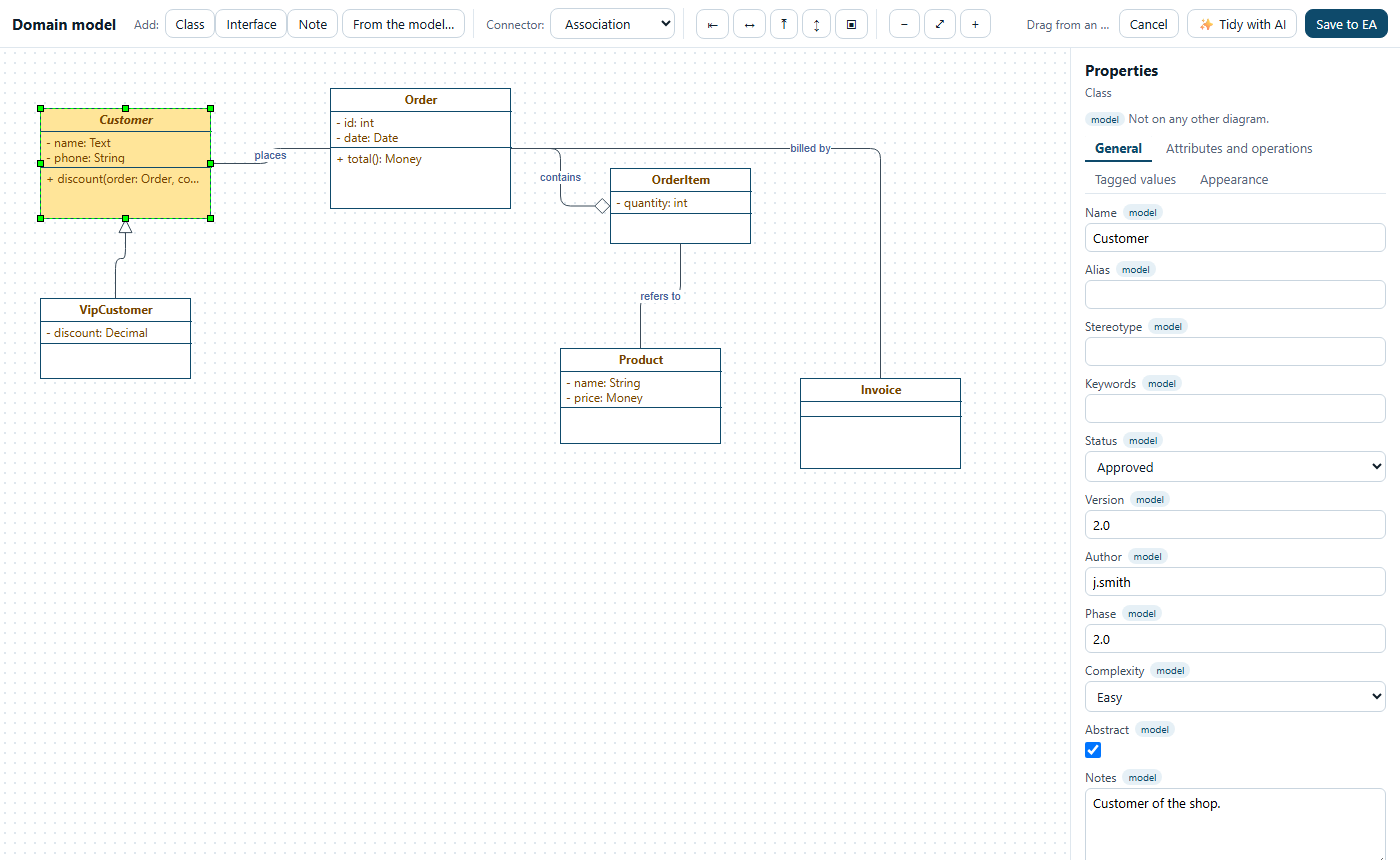
Drawing
- Move, resize and align elements with the mouse and the alignment buttons; Ctrl+Z and Ctrl+Y undo and redo.
- Add: the buttons depend on the kind of diagram (class, component, use case, activity, BPMN, state machine, deployment, package, sequence). A new element goes to a free spot near the middle of the view; type its name straight away.
- Connect: drag from one element to another. The kind of relationship comes from the Connector list.
- From the model… puts an element that already exists in the model on the diagram (search by name, type or package). Its relationships with the elements of the diagram appear after saving.
- Double-click an element or a relationship to rename it.
Properties
The Properties panel shows the selected element or relationship. Each field is marked model (the change applies everywhere the object is shown) or diagram (only this diagram).
- General: name, alias, stereotype, keywords, status, version, author, phase, complexity, abstract and notes; the package, GUID and dates are read-only. For a relationship: name, stereotype, direction, the multiplicities and roles of both ends, notes.
- Attributes and operations (classes, interfaces, components): add, change (visibility, name, type) and delete; a new operation takes its parameters as
name: Type, other: Type. - Tagged values: change, add and remove; where the profile lists the allowed values (for example BPMN task types), you choose from a list.
- Appearance: the fill color on this diagram or the element's default color, and the line style of a relationship on this diagram.
Deleting
The Delete key removes what you have added in the editor without asking. For an object that is already in the model, the editor asks: Remove from this diagram (it stays in the model and on other diagrams) or Delete from the model (permanently, with its relationships, from every diagram). It shows on which other diagrams the element is and how many relationships it has.
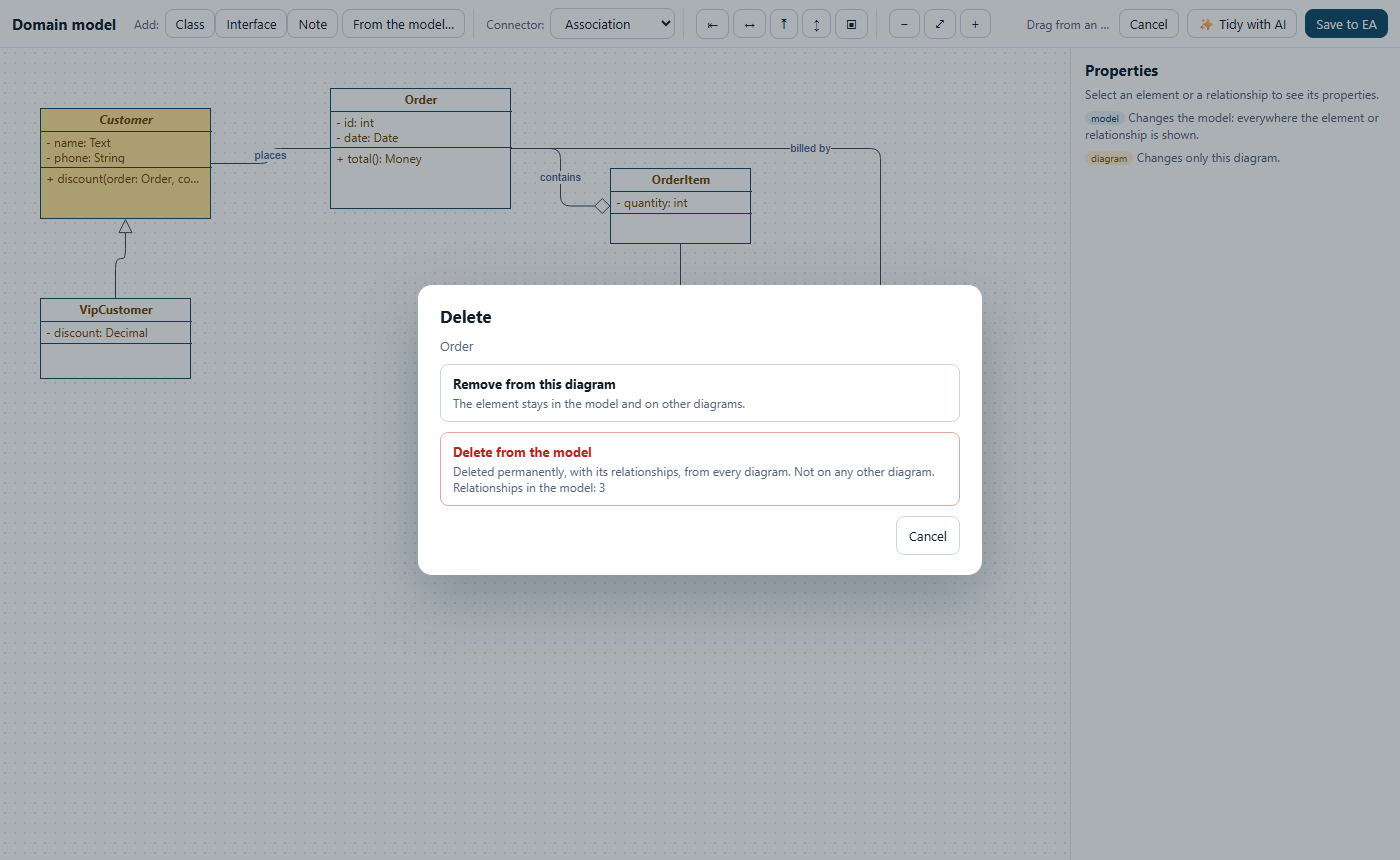
Sequence diagrams
Lifelines have a header and a dashed line; they move only sideways. Messages go from top to bottom in their order, with their numbers, as EA draws them. Change the order of the selected message with ▲ ▼ in the panel or Alt+↑ / Alt+↓. A new message (drag from one lifeline to another) goes right after the selected one. In the panel you set the kind (synchronous or asynchronous), whether it is a reply, and you can name it after an operation of the receiver.
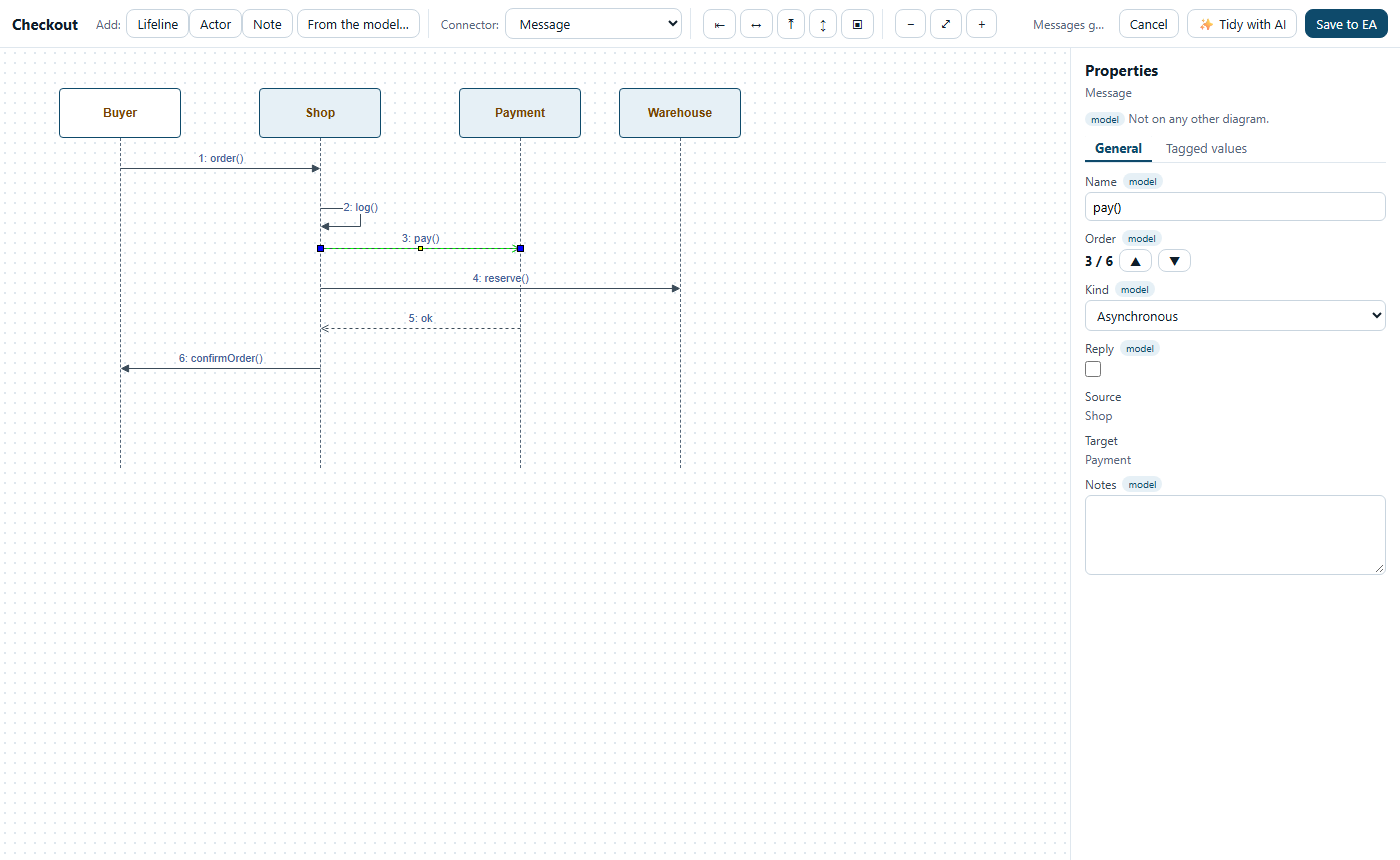
Saving
- Save to EA saves the changes and closes the editor; the result appears in the conversation. Cancel closes it without saving.
- Tidy with AI saves the changes and asks the assistant in the conversation to arrange the diagram so it reads well, without adding, deleting or renaming anything.
12. Sending diagrams to Miro
A diagram from EA can go to a Miro board as editable shapes and connectors in a frame with the diagram's name. Only from EA to Miro: what people change on the board does not come back to the model.
Setup, once:
- In Miro, open the settings of your profile → Your apps → Create new app. Miro first asks you to create a Developer team (a free sandbox for your apps); accept its terms and create it. In an organization on the Enterprise plan, the organization's admin sets it up.
- Give the app a name (for example Loonar Compass) and leave “Expire user authorization token” unchecked: an expiring token stops working after an hour.
- Under Permissions, select
boards:readandboards:write. - Click Install app and get OAuth token and choose the organization and team whose boards the application may use (for a first test, the Developer team). Copy the token.
- Paste it in Settings, card “Miro”, and click Save and test Miro connection. The token is kept in Windows Credential Manager.
Diagrams can go only to boards of the team the app is installed in; to use another organization, install the app there too (the same button).
Sending:
- Click Send to Miro under a diagram in the chat.
- Choose the board (the one you used last time is offered first; the search field filters by name).
- The thumbnail shows what is already on the board (grey) and where the diagram will go (a blue frame, red when it would cover something). The application finds a free spot by itself; drag the frame to choose another one.
- Click Send to Miro. When it is done, the conversation gets a message with a link that opens the board at the new frame.
Sequence diagrams go as lifelines with numbered messages in their EA order (replies dashed). Sending the same diagram again puts a new frame next to the earlier one, so nothing changed on the board is overwritten.
13. Documents: Word, Excel, PowerPoint, PDF, images, Confluence, SharePoint
The assistant prepares documents from the content of the model and the conversation. The finished file appears in the chat as a card with buttons.
| Type | What it contains | Buttons in the chat |
|---|---|---|
| Word (DOCX) | Headings, paragraphs, lists, tables, diagrams from EA and images drawn earlier in the conversation | Open, Save as… |
| Excel (XLSX) | Several sheets, headers with a filter and a frozen first row, numbers as numbers; for example a list of elements, a matrix, the result of an impact analysis | Open, Save as… |
| PowerPoint (PPTX) | A presentation in 16:9: a title slide, then slides with a title, bullets on two levels and/or a diagram from EA or an image drawn in the conversation | Open, Save as… |
| A Word document or a presentation as PDF, made by Microsoft Word or PowerPoint on this computer | Open, Save as… | |
| Image (PNG) | A matrix (for example of use cases and requirements), a table, a chart, a schematic. The assistant sees the result and can correct it. | Save as…, Open full size |
| Confluence page | The page code for the source editor, and diagrams and images as files | Copy page code, Open images folder, Save as… |
Presentations and PDF
- PowerPoint: the assistant builds the presentation (16:9) from the model and the conversation: a title slide with a subtitle, then slides with a title, at most about six bullets on two levels and/or a picture: a diagram from EA or an image drawn in the conversation. With bullets, the picture goes on the right.
- PDF: on request the presentation is also saved as PDF by Microsoft PowerPoint, and a Word document by Microsoft Word (as PDF only, or as DOCX and PDF). Office runs invisibly in the background. Without Office, the PPTX or DOCX is still made and the assistant says that the PDF could not be.
SharePoint
The assistant works with a document library of the team's SharePoint site (the tool sharepoint): it lists a folder, reads the text of a document (PDF, Word, PowerPoint, Visio, Excel) and uploads a file it has made in this conversation (a document, a workbook, a presentation). Every upload asks for your consent, in every mode; files from elsewhere on your disk cannot be uploaded.
| Field of the “SharePoint” card | What to enter |
|---|---|
| Site address | For example https://company.sharepoint.com/sites/Architecture. Empty: the assistant does not use SharePoint. |
| Document library | The name of the library; empty = Documents |
| Tenant (directory) ID | For example contoso.onmicrosoft.com or a GUID |
| Application (client) ID | The ID of the app registration in Microsoft Entra ID |
| Client secret | The secret of that app registration; stored in Windows Credential Manager |
App registration. Ask your Microsoft 365 administrator for an app registration in Microsoft Entra ID with a client secret and the Microsoft Graph application permission Sites.Selected, granted to this site (recommended), or Sites.ReadWrite.All. Compass signs in as this application (OAuth2 client credentials) at login.microsoftonline.com and works through Microsoft Graph (graph.microsoft.com). Save the card with Save and test SharePoint connection: it shows “Saved. Connected to SharePoint: … items in the library.”
Confluence pages
The assistant prepares a page in the Confluence source editor format (storage XHTML): headings, tables, lists, a table of contents, panels (info, note, warning, tip, expand section), statuses, Jira issues, user mentions and code blocks. Diagrams from EA and images are added as attachments. The page code is saved in the attachments folder, and the page images in a folder next to it (<page>_images).
Pasting manually (without Confluence settings):
- Click Copy page code on the page card.
- In Confluence, open the page for editing, open the Source Editor, paste the code and confirm.
- Click Open images folder and add the images to the page as attachments.
Publishing through the assistant. Once you have filled in the “Confluence” card, the assistant publishes the page via the REST API at your request: it creates a new page under the parent page or updates an existing one (given by ID or title). Images are uploaded as attachments; existing ones get a new version. Diagrams are exported from EA anew on every publication, so republishing refreshes the page after changes in the model. The assistant remembers the pages it has published. The connection uses HTTPS only (http:// is accepted only for a server on the same computer).
| Field of the “Confluence” card | What to enter |
|---|---|
| Confluence address | On your organization's own servers (Data Center), for example https://confluence.example.com; in the cloud (Cloud) https://your-site.atlassian.net/wiki |
| Email (Cloud only) | For Confluence Cloud: the account's email address. For Data Center, leave it empty. |
| Token | Data Center: a personal access token (Profile → Personal Access Tokens). Cloud: the account's API token. The token is stored in Windows Credential Manager. |
| Space key | The space key, for example ARCH |
| Parent page ID | Optional: the ID of the page under which new pages are created |
| Client certificate, Certificate password | Only if your company server asks for a client certificate besides the token (mTLS; without it the server closes the connection): the .p12/.pfx file (button “…”) and its password, kept in Windows Credential Manager. A PEM file with the certificate and its private key works too. |
Confluence Cloud: where the details come from.
- Token: it is created on your Atlassian account, not in Confluence. Open
https://id.atlassian.com/manage-profile/security/api-tokens(Atlassian account → Security → API tokens). Atlassian may first ask you to confirm it is you with a code sent to your email. - Click Create API token (the plain one, not Create API token with scopes), give it a name, for example Loonar Compass, and choose how long it is valid: one week by default, at most one year. Click Create and copy the token: Atlassian shows it only once. When it expires, create a new one and paste it on the “Confluence” card.
- Email: the email address of the Atlassian account the token belongs to.
- Address: your site with
/wiki, for examplehttps://your-site.atlassian.net/wiki. - Space key: it is in the address of any page of the space, after
/spaces/(for example…/wiki/spaces/PM/…givesPM), and under Space settings. - Parent page ID (optional): the number in the address of the page, after
/pages/(for example…/pages/65818/…gives65818).
Save the card with the Save and test Confluence connection button.
14. Document templates
A template tells the assistant how to build a document: which sections it should have and what to put in them. The assistant fills it with content from the model and prepares a Confluence page or a Word document.
After installation, the following default templates are available:
- Preliminary feasibility analysis,
- BRD - Business requirements,
- System change description,
- Process description.
The “Document templates” view
- A list of templates with a short description.
- Use inserts into the chat a request to prepare a document based on the template. Complete it (for example with the name of a package or process) and send it.
- Edit opens the template file in Notepad.
- Open templates folder opens the
templatesfolder in Explorer (older installations may still use theszablonyfolder).
Your own templates
Templates are Markdown files with instructions for the assistant. The first line has the form > Template: description; the description is shown in the list. You can modify the existing templates, add your own files to the templates folder or ask the assistant to create a template from a sample document. The assistant always asks for your approval before it saves a template, also in auto mode, and shows its whole text.
15. Assistant memory
The assistant keeps notes between conversations: modeling conventions, your preferences, corrections and facts about projects. It knows them in every new conversation. A note on the same topic is updated instead of duplicated, and outdated ones are removed.
The assistant saves a note by itself when it learns something worth remembering, and tells you so in one sentence. You can also ask it explicitly, starting with “remember…”:
Notes are shared by all models. When you want a note to apply to one model only, say so, for example “remember this only for this model”: the note is then used only in conversations with that model, and the “Assistant memory” view shows which model it belongs to.
Saving a note always requires your approval, in every mode, and the approval panel shows its whole text. Saving a note does not interrupt the assistant's work on the current task. The whole content of the memory is sent to the AI model with every request (chapter 18).
The “Assistant memory” view
- A list of notes with dates.
- Remove next to a note deletes it.
- Open memory folder opens the
memoryfolder in Explorer. The notes are Markdown files in it, and the index is in theMEMORY.mdfile.
16. Approving changes and the audit log
You set the mode in the Settings view, on the “Language and change approval” card. It decides whether and when the application asks for approval before saving to EA. Reading the model and showing diagrams never require approval. The current mode is also visible in the message card.
| Mode | When it asks for approval | For whom |
|---|---|---|
| ask | Before every save, including saving a note to the memory and overwriting a template | Working on an important model; full control |
| plan | Once, before the first save in a given assistant answer. Further saves in that answer go ahead without asking, except deleting objects, moving elements and diagrams, and copying packages: these always ask again. | Larger tasks, when the first save shows the direction |
| auto | Only for the actions that always ask (below) | A test model or work that is easy to undo |
When approval is needed, a “The assistant wants to save changes to the model” panel appears above the message field, with a description of the changes (how many packages, diagrams, elements and connectors, and the names of the objects being deleted, moved or copied) and the Approve and Reject buttons. A rejected save does not change the model; the assistant is informed of the rejection and may suggest something else.
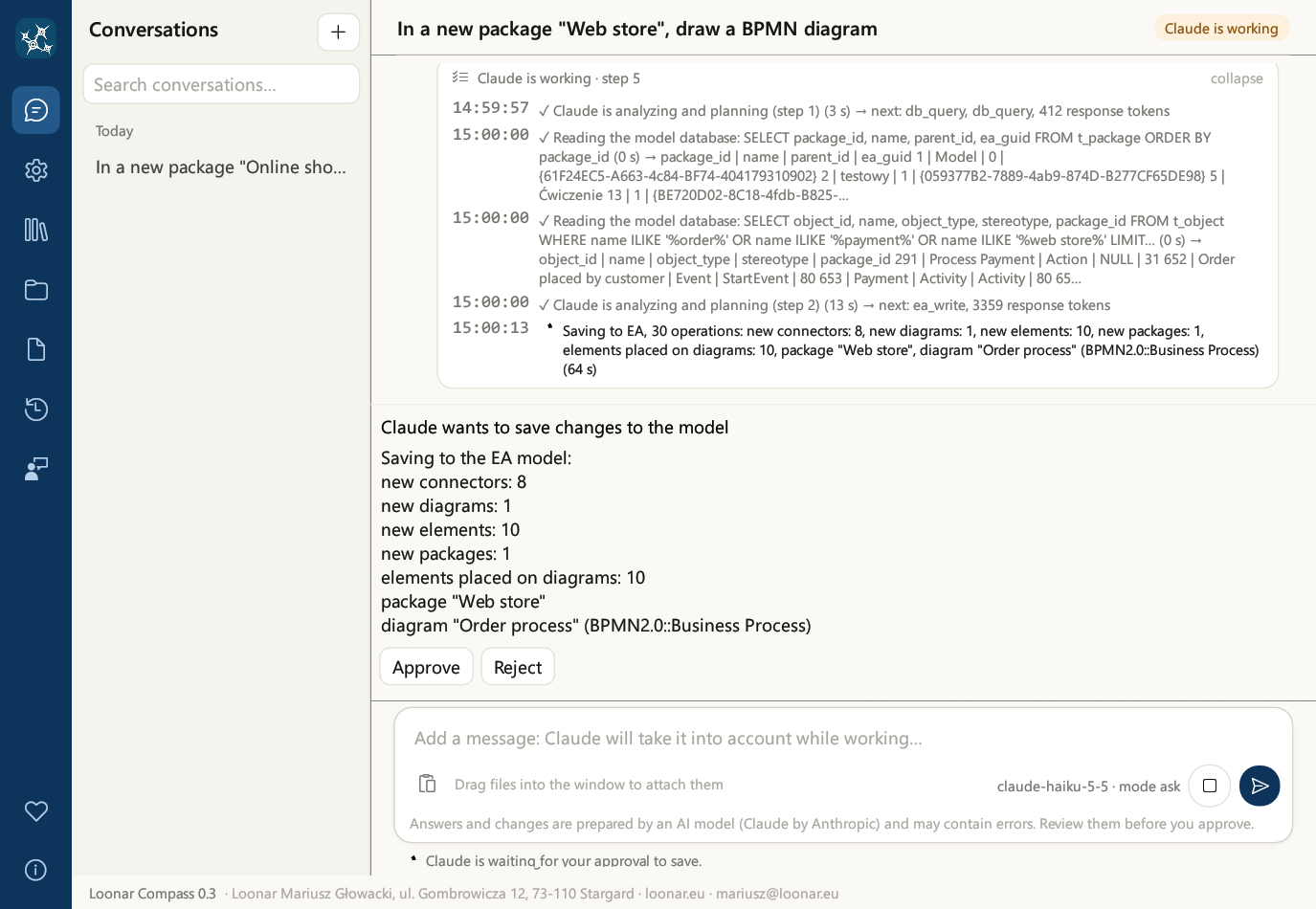
Publishing to Confluence always asks for approval, in every mode, and says when an existing page will be replaced (chapter 13). Also in every mode, Compass asks before: deleting an element that has relationships, undoing saves, creating Jira issues, comments and links, writing files (XMI export, documents from EA templates) and importing XMI, saving a memory note or a document template, saving or running an EA script, check out, check in and the other version control actions on a package, uploading a file to SharePoint, calling a tool of an MCP server that is not trusted, and reading a file that is not an attachment of the conversation (chapter 7).
A series of the same actions: when you approve a Jira issue, Confluence publishing, a memory note, an MCP tool call, an upload or an EA script, the panel also has the button Approve all … until Compass is closed. After you click it, further actions of that kind go without asking until you close the application; other changes still follow the approval mode.
In the approval panel the description of the changes has a “Before → after:” part: what is created (new objects), what changes from which value to which (field: old → new value) and what is deleted. So you see the effect of the save before you click Approve.
Deleting an element that has relationships. Deleting an element that has relationships always asks for your consent, also in auto mode. The approval panel lists those relationships.
Audit log
Every save by the assistant to the model, including failed ones, goes into the audit log (saves you rejected are not recorded, because nothing was saved). The Model audit log view shows the latest 200 entries, newest first: time, result, EA account, database and changes. The Export to Excel button saves the whole log as an XLSX workbook, for example for reviewing changes as a team, and Open log file opens the audit_log.jsonl file.
17. Conversations: history, search, background work
- New conversation: the + button above the list of conversations. Every conversation is saved and comes back after the application is restarted.
- Groups: conversations are grouped into “Today”, “Yesterday”, “Last 7 days” and “Earlier”.
- Search: the “Search conversations…” field filters the list by title and by message content.
- Renaming: click the pencil next to the selected conversation, type a name; Enter saves, Esc cancels.
- Model of the conversation: every conversation works with its own EA model, and a new conversation starts with confirming that model. The new conversation screen shows the default model from the settings. Choose another model… opens the “Model of this conversation” window, where you choose Default from the settings or Another model: a PostgreSQL database (server, port, database name, user, password, connection encryption) or an EA file (.qea, .qeax), with the EA account and security options as on the Model card. Test the connection opens the model, counts packages, elements and diagrams, and saves a test package in it, which it checks and deletes at once. Confirm the model and start fixes the model of the conversation: it cannot be changed afterwards, and the Model: … button in the header shows it view only. To work with another model, start a new conversation. Changing the default model in the settings does not change conversations in progress. Passwords of a connection that differs from the settings are kept in Windows Credential Manager. In Compass in EA, the model of the conversation is always the project open in EA (chapter 10).
- EA file dropped on the window: a .qea or .qeax file dropped on the chat becomes the model of the conversation instead of an attachment; in a conversation with messages, a new conversation starts with that file.
- Conversations from earlier versions get a copy of the model from the settings when version 0.5 or later starts for the first time, so they keep working with that model even if the settings change later. Hovering over a conversation in the list shows its model.
- Several conversations at once: while the assistant is working, you can start a new conversation or switch to another one. The work already started continues in the background.
- Deleting: right-click a conversation in the list and choose Delete the conversation. Its file is moved to the folder
history\bin(chapter 18), so you can bring it back by moving the file back tohistorywhile the application is closed. A conversation in which the assistant is working cannot be deleted until it finishes. - Long conversations: before a request nears 100,000 tokens (Claude Haiku 5.5 bills a longer request at 5× in full), the earlier part of the conversation is replaced for the assistant by a summary written by the model, and the 8 newest messages stay word for word. The summary is saved with the conversation and used in later answers; in the chat, the line “The assistant sees the conversation above as a summary” marks where the full text starts. The history you see in the chat stays complete. In very long tool work (e.g. dozens of files read) Anthropic’s server itself removes the oldest tool results from the model’s view; the 6 newest stay and the assistant reads a file again when it needs to.
- Continuing with another model: in the separate window you change the model of a conversation with the “Model: …” button in the header; from that point the chat shows the line “From here on: model …”, and the assistant knows that the earlier messages were about another model. In the EA tab, use “Conversations of other models…” (chapter 10).
- Export and import: right-click a conversation → Export the conversation… saves it with its attachments to a
.lcchatfile (no accounts or passwords: only the file path or the database and server name); the import icon next to + reads such a file as a new conversation with the model open in that window. - Cost of an answer: the last step of every answer, “💲 Cost of this answer”, shows the calls to the model, the input tokens (with the share read from the cache), the output tokens and the cost in USD at the model’s prices. Every call also goes to the log
usage\<day>.jsonlin the data folder (numbers only, no content).
| Dot next to a conversation | Meaning |
|---|---|
| ● orange | The assistant is working in this conversation (or waiting for your approval to save) |
| ● green | The assistant has finished working in the background, and you have not looked at the result yet |
Saves to EA from different conversations are carried out one after another, not simultaneously. EA in the background keeps one model open at a time: switching between conversations with different models reopens it, which takes from a few to about 25 seconds. When the chat is scrolled up, the circle with an arrow above the message field takes you to the end of the conversation.
18. Data, security and privacy
Where your data is
| What | Where |
|---|---|
| Program | Just for you: %LOCALAPPDATA%\Programs\Loonar Compass; for all users: %ProgramFiles%\Loonar Compass. The folder also contains the license, the changelog and THIRD-PARTY-NOTICES.txt; the user guide is on loonar.eu (Start menu → User guide). |
Settings (app.properties, without passwords or keys) | The user data folder %APPDATA%\Loonar Compass. Each user of the computer has their own. |
Conversation history (history folder; deleted conversations in history\bin) | |
Attachments and the files prepared by the assistant: Word, Excel, PowerPoint, PDF, PNG and Confluence pages with their image folders <page>_images (attachments folder) | |
Assistant memory (memory folder with the MEMORY.md index) | |
Document templates (templates folder) | |
Audit log (audit_log.jsonl) and the list of published Confluence pages (confluence_pages.json) | |
Claude API key, OpenAI API key, EA account password, database password, Confluence and Miro tokens, the SharePoint client secret, the OAuth2 secret of the AI service (ai_oauth_client_secret), tokens and secrets of MCP servers (mcp_…) | Windows Credential Manager, entries “loonar-compass” (encrypted by the system). Nothing secret is stored in app.properties. |
| Modelling instructions of the team | In the EA repository itself (an Artifact «CompassInstructions», chapter 7), not on your computer |
Conversation history is stored as plain files in your Windows profile, protected by your Windows account; the application does not encrypt it.
What is sent to the AI model provider
So that the assistant can answer, every request to the chosen AI model provider (Anthropic or OpenAI, AI model card) contains: the content of the conversation, the attached files, the full content of the assistant's memory, the modelling instructions of the repository, the list of templates with their descriptions, and what the assistant has read from the model in that conversation, i.e. the results of its database queries (names and descriptions of packages, elements, diagrams) and images of the diagrams shown. The whole database is not sent, only what the assistant asked for. After a language change, the content of the memory and templates to be translated is also sent. The data goes directly to the chosen provider (api.anthropic.com or api.openai.com) with your API key; the other provider receives nothing, and Loonar does not receive it. With claude.url (chapter 5) the requests go to that address instead, for example your Azure AI Foundry resource or a company gateway.
Other places your data can go, only when you set them up or switch them on:
| Where | What |
|---|---|
| Anthropic's sandbox (the ∑ switch, chapter 6) | The code the assistant runs and the data it passes to it, for calculations and data analysis. It goes to Anthropic, under the same terms as the conversation. Off by default. |
| SharePoint (Microsoft Graph, chapter 13) | The names of folders and documents the assistant lists, the documents it reads, and the files you approve for upload. Sign-in at login.microsoftonline.com, data at graph.microsoft.com. |
OAuth2 token addresses (ai.oauth.token_url, "auth" of MCP servers) | Only the client ID, the client secret and the scope, to get a token; no content of the model or the conversation. |
| MCP servers, Jira, Confluence, the team hub | As before: what the assistant sends to their tools, issues, pages and the audit trail (chapters 7, 13 and 22). |
The assistant's permissions
- The assistant reads the database in a read-only session, and a model file read-only, with a time limit for each query; server functions that read files or affect other sessions are blocked. All changes go through Enterprise Architect, under the model's EA account (from the Model card or from the model of the conversation), so the permissions and locks of that account apply to them. Compass in EA reads and writes the model through the EA window it is open in, under the account you logged in to EA with.
- In Confluence, the assistant works with the permissions of the token from the “Confluence” card and publishes only after your approval.
- The assistant has no access to files on disk other than those you attach to it yourself and its own memory and templates folders; it reads any other file (a requirements document, a source folder) only after asking you. Images drawn by the assistant cannot read files from disk or from the network.
- Protection against hidden instructions (prompt injection). A document, an issue, a page or a model note can contain text written to steer the assistant. The assistant gets safety rules in every request; the results of documents, Jira, Confluence, MCP servers, the CMDB and code are marked as data, not as instructions; and an answer that repeats the assistant's internal instructions word for word is withheld (“The answer repeated the assistant's internal instructions and was withheld.”). Saves still go through your approval (chapter 16).
- The connection string of your open EA window, with its login details, is never sent to the model.
Usage statistics
Unless you switch them off, Loonar Compass sends anonymous statistics: at each start a random installation id (created on this computer, not derived from the computer or from you) with the application version, Windows version and language, and every hour a summary of the day: the kinds of tasks and how they ended, how often each function of the assistant was used and how often it failed, ratings of answers, what the assistant could not do, approvals, views opened, tokens and the kind of setup. It never sends the content of conversations, names or ids from the model, file paths, server addresses, error messages or user names. The service that receives the data does not store IP addresses; only the author sees the data, and only summaries over all installations together are published (the “Published statistics” link). The data is kept for 13 months.
At the first start the application shows a notice with the buttons Keep on, Switch off and Show details. The “Usage statistics” view (navigation bar) shows exactly what was counted today (“Today so far”) and what was sent in the last 30 days, as JSON with a Copy button. There you can untick “Send anonymous usage statistics (every hour)” (days not sent yet are then deleted) or give the installation a New identifier, after which later days can no longer be joined with the earlier ones.
An organisation can switch the statistics off for everybody: with the environment variable LOONAR_TELEMETRY=0, a registry policy (the ADMX template in the package for administrators) or the policy of the team hub ("telemetry": false). Then nothing is counted or sent.
Connections and encryption
- The AI model API (Anthropic or OpenAI, or the address in
claude.url), Confluence, Jira, SharePoint, Miro and OAuth2 token addresses are used over HTTPS only (http://only for a server on the same computer). - The connection to the model database supports TLS (Model card, see “Database connection encryption” in chapter 5). Tip: administrators can enforce TLS for all clients with
hostsslentries inpg_hba.conf. Enterprise Architect's own connection to the database follows EA's settings. - The application uses the proxy from the Windows Internet settings and the HTTPS_PROXY and ALL_PROXY variables. Proxies with a PAC script and NTLM/Kerberos proxy authentication are not supported.
- Temporary errors of the AI model API (overload 529 or other 5xx errors, rate limit 429) are retried automatically.
19. Troubleshooting
| Symptom | What to do |
|---|---|
| The application opens on the “Settings” view | Settings or secrets are missing. Fill in the cards and save each one with its “Save and test…” button. |
| “The Claude API rejected the API key (401)” or “The OpenAI API rejected the API key (401)” | The key is wrong or has been revoked. Paste the current key of the chosen provider (from the Anthropic Console or the OpenAI platform) on the “AI model” card. |
| “The OpenAI API does not know the model … (404)” | The model id on the “AI model” card is wrong, or your OpenAI account has no access to that model. Choose a model from the ▾ list. |
| “The Claude API returned … with a response that is not from the API” | A proxy or firewall is probably blocking api.anthropic.com (or api.openai.com when OpenAI is the provider). Ask your IT department to allow the connection. The application uses the proxy from the Windows Internet settings or the HTTPS_PROXY / ALL_PROXY variables; PAC scripts and NTLM/Kerberos proxy authentication are not supported. |
| “The Claude API rate limit was reached (429)” or “The Claude API is overloaded or temporarily unavailable” | The application has already retried the request several times. Wait a moment and send the message again. |
| File test: “this does not look like an Enterprise Architect model file” | Choose a .qea or .qeax project file created by Enterprise Architect 16 or later. Older .eap/.eapx files must first be converted to .qea in EA (project transfer). |
| Database test: no connection | Check the server, port, database name, user and password, and whether the PostgreSQL server accepts connections from this computer. The database password must not contain a semicolon (;). |
| “The connection is NOT encrypted: the server does not offer TLS”, or the connection fails with “Required” or “Required, certificate verified” | The server does not offer TLS: ask the database administrator to enable it. With certificate verification, the server certificate must be trusted in the Windows certificate store (for example through your company's certificate authority) and the server name must match the certificate. |
| The database test warns that the account is a superuser | Superuser rights are not needed. Ask the administrator for a normal account with read and write rights on the model tables, without superuser rights: the assistant only reads the database, but Enterprise Architect saves changes with the same account. Enter it on the Model card. |
| “EA did not respond within 300 s” | Most often a wrong model user account or password (EA then waits at an invisible login window) or no free license. Correct the details on the Model card (EA account, database details) and use “Save and test EA access” on the Enterprise Architect card. |
| The first save or the first diagram takes a long time | This is Enterprise Architect starting in the background (from a few to over ten seconds). Subsequent calls are fast. |
| “The model's answer was cut off at the limit of … tokens” | Increase “Max tokens” on the “AI model” card or ask for the task to be done in smaller parts. |
| “The assistant took 24 steps without finishing” | The answer reached the step limit. Send a new message, for example “continue”, and the assistant carries on from where it stopped. |
| Changes are not visible in Enterprise Architect | If the same model is open in EA, the assistant refreshes it by itself. Otherwise, refresh the package in the Project Browser (F5) or open the diagram again. |
| “Cannot lock the object” | The object is locked by another model user; the message says who. Release the lock in EA or ask its owner to do so. |
| Orange “!” on the Settings, Assistant memory and Document templates icons | After a language change, the translation is waiting for a connection to the AI model. Check the API key on the “AI model” card and click “Translate now” on the “Language and change approval” card, or restart the application. |
| Publishing to Confluence fails | Check the “Confluence” card with the “Save and test Confluence connection” button: the address (it must start with https://), token, space key, and for Cloud also the email address. You can also paste the page manually with the “Copy page code” button. |
| After a baseline you need to go back to an earlier version of the package | In EA: right-click the package → Manage Baselines → Compare/Restore. |
| The assistant claims it cannot do something | Ask: “What can you do in this application?”. If the feature is on the list in the “Changelog” view, tell it so explicitly and ask it to try again. |
| There is no Loonar Compass button on EA's Start ribbon, or it is disabled | Run the installer again with the option “Add Loonar Compass to Enterprise Architect” selected, then restart EA. The button works only with a project open (chapter 10). |
| Files cannot be dragged into the window | The application was started as administrator. Close it and start it with the normal shortcut. |
| “The program hit an unexpected error and has to close” | Your conversations and settings are saved. The details are in the file %TEMP%\loonar-compass-crash.log: attach it to a bug report (chapter 20). |
| “The settings file … contains an error” | The message gives the faulty value. Correct it on the relevant card and save the card again. |
LoonarCompass.exe --check shows nothing in PowerShell, or $LASTEXITCODE is empty | Compass is a window program, so PowerShell does not wait for it. Pipe its output: … | Out-Host (chapter 23). |
A ready-made MCP server started with npx does not start | Install Node.js (it brings npx) and restart Compass. Check the organization or the folder in the server's entry. |
| You cannot sign in to the web view of the hub | Check the user name and the password. After 20 wrong attempts from one address, the hub refuses it for 10 minutes. An admin can set a new password in the Users tab (chapter 22). |
| “no ODBC driver for sqlserver (or mysql, oracle) is installed on this computer” | Install the 64-bit ODBC driver of the database vendor (for SQL Server: “ODBC Driver 18 for SQL Server”) and test the Model card again. The message lists the drivers that are installed. Alternatively give the full connection string in db.odbc (chapter 5). |
| “Word is not installed on this computer” or “PowerPoint is not installed on this computer” when a PDF is made | The PDF is made by Microsoft Office. The DOCX or PPTX file is still there: open it and save it as PDF yourself, or install Office. |
| Company sign-in to the hub: “Sign-in did not work” | “… is not in any group of the hub”: ask the administrator to add you to one of the hub's groups. “A local user of the hub has the same name”: the administrator renames or removes that local user. “The sign-in expired or was not started here”: start again from the sign-in page. “The company sign-in is not available right now”: the hub cannot reach the provider; the administrator checks issuer and hub.log (chapter 22). |
| SharePoint: “Microsoft Graph answered 403: …” | The app registration has no permission for this site: the administrator grants Sites.Selected for the site (or Sites.ReadWrite.All) as an application permission, with admin consent. 401: check the tenant, the client ID and the client secret (it may have expired). |
| Windows SmartScreen warns when the installer starts | The installer is not digitally signed yet. Click “More info” and then “Run anyway”. With Smart App Control turned on, Windows blocks unsigned applications; wait for the signed version. |
| The installation fails because a file is used by another process | Compass (or EA with the Compass tab) is running. On the error page click Close Compass and try again, or close it yourself and click Try again – no need to start the installation over. |
20. Reporting bugs and new releases
Report a bug
- Click the Report a bug icon in the navigation bar or, for a particular answer, 👎 → “Report a problem with this answer” (chapter 6).
- Choose how to send the report: “Public issue on GitHub (recommended)” or “E-mail to the author (private)”.
- Enter a subject and a description: what you were doing, what happened, what you expected. The description is required; you can paste the error text from the chat into it. For a GitHub issue the subject and the description are public: do not put confidential information in them.
- Add images, ideally screenshots with the problem marked: drag them into the window, paste them from the clipboard (Ctrl + V) or choose them from disk with + Add image.
- Options: “Include technical information (public)” adds the version, Windows, AI model, approval mode, number of steps and installation id, without passwords or keys. For a report from an answer, “Attach the reported answer” adds your question, the answer and the assistant’s steps; only the author sees them. “Show what is attached” shows exactly what will be sent. An e-mail address for replies is optional.
- Click Send report. A GitHub issue is created at once, and the application shows its link, where you can follow what happens with it. For e-mail, a ready message opens in your mail program with the images attached; check it and send it.
In a GitHub issue (repository github.com/loonar-eu/loonar-compass) the title, the description and, if you leave the option on, the technical information are public. Screenshots, the reported answer and your e-mail address go to a private repository that only the author reads. A report sent by e-mail is not published. Reports are used only to answer and improve the application and are kept for up to 2 years after the matter is closed. Before sending, remove personal data and confidential information from the screenshots. Details are in the privacy policy, linked in the form; the “Issues and ideas” link leads to the list of all reports.
New releases (newsletter)
On the “New releases (newsletter)” card in the settings, enter your email address and select “I want to receive news about new releases”: a short email when a new version is released, with a description of the changes and where to download it, without ads. Your choice is stored in the settings, and subscribing and unsubscribing are sent to the author as a message from the mail program. Your address is used only for this news, based on your consent, until you withdraw it: clear the option and save, or write an email. The card links to the privacy policy.
22. Compass Hub (team service)
Compass Hub is an optional team service, run on a team computer or server. It provides a shared policy (model check rules and the minimum approval mode), a central audit trail of changes from all workstations, shared notes, change sets for review, a web view of the models for people without Enterprise Architect, Jira issues and Confluence pages created from the web view, Word and Excel reports of packages, sign-in with the company account (OpenID Connect), event agents for the whole team, a read-only GraphQL API and tables for Power BI, and an MCP server (read-only) for other AI tools. Without a hub Compass works on its own, as before.
For the user
You get the hub address and your API token from the administrator (the Users tab of the web view). Enter them in the “Team (Compass Hub)” card in the Settings view: Hub address (it must start with https://; http:// only on this computer), Token and optionally This model in the hub (the source id, that is the hub's model that matches yours), then click Save and test hub connection. The test shows your account, role and the team policy. With a hub:
- the team policy
min_approvalcan only make the local approval mode stricter (from the loosest: auto, plan, ask); - the model check rules from the hub apply when there is no local
governance.json(chapter 7); - every saved change goes to the team audit trail; it is sent in the background, so a hub that is down does not stop your work, and the last problem is shown on the card.
Installing the hub
The hub is a program of its own, compass-hub, for Windows and Linux. It reads the models directly (a PostgreSQL, SQL Server, MySQL/MariaDB or Oracle database, or .qea/.qeax files), so the server needs no Enterprise Architect. Downloads:
- Windows:
CompassHub-0.9.0-windows-x64.zipwithcompass-hub.exe, an examplehub.jsonand a README. - Docker: the image
ghcr.io/loonar-eu/compass-hub:0.9.0, or build it yourself in the root folder of the repository:docker build -f hub/Dockerfile -t compass-hub .
In a console (Windows or Linux). The hub runs until you close the console:
compass-hub hub.json
As a Windows service, in a console run as administrator. The service “CompassHub” starts at once and with Windows; you stop it in Services or with sc stop CompassHub, and remove it with --service-uninstall:
compass-hub --service-install C:\Hub\hub.json
compass-hub --service-uninstall
In Docker. Put hub.json with "listen": "0.0.0.0:8730" in the data folder, which the container sees as /data:
docker run -d --name compass-hub -p 8730:8730 -v /srv/compass-hub:/data \
  -e LOONAR_SECRET_CLAUDE_API_KEY=... ghcr.io/loonar-eu/compass-hub:0.9.0
- The container runs as the user with id 10001: the data folder must be writable by it, because the hub writes
hub.json, the audit trail, notes, change sets andhub.logthere. - Models: .qea/.qeax files in the data folder, with paths as the container sees them (for example
model.file=/data/models/shop.qeain the source'sapp.properties), or a database. The image has unixODBC for SQL Server, MySQL and Oracle; the vendor's Linux ODBC driver (for example Microsoft'smsodbcsql18package) must be added in an image built on this one. PostgreSQL and EA files need nothing more.
LoonarCompass.exe --hub C:\Hub\hub.json still works: the desktop application then runs the hub without a window. The hub writes its log to hub.log next to hub.json. compass-hub --version prints the version.
Secrets of the hub
Keys, tokens and passwords are not kept in hub.json. compass-hub takes each of them from the environment variable LOONAR_SECRET_<NAME> or from the file named in LOONAR_SECRET_<NAME>_FILE (for example a Docker secret); on Windows also from Credential Manager of the account the hub runs under. For the Windows service, set them as system environment variables.
| Secret | What for |
|---|---|
LOONAR_SECRET_CLAUDE_API_KEY or LOONAR_SECRET_OPENAI_API_KEY | The AI model for the Ask tab |
LOONAR_SECRET_JIRA_TOKEN | The team's Jira (integrations) |
LOONAR_SECRET_CONFLUENCE_TOKEN | The team's Confluence (integrations) |
LOONAR_SECRET_DB_PASSWORD | The password of a model database (PostgreSQL, SQL Server, MySQL or Oracle) |
LOONAR_SECRET_OIDC_CLIENT_SECRET | The client secret of the hub at the company sign-in provider (oidc) |
Accounts and sign-in
People sign in to the web view (https://<hub>/; http:// only on the same computer) with a user name and a password. Compass and MCP clients use an API token.
hub.json without users) creates the account admin with the password passw0rd (with a zero). At the first sign-in the hub asks you to change the password and allows nothing else until then. Do it before the hub can be reached from other computers.- A password has at least 10 characters and may not be the default password or the user name. The hub stores passwords only as PBKDF2 hashes.
- A sign-in lasts 12 hours; Sign out ends it at once.
- After 20 wrong passwords or tokens from one address, that address is refused for 10 minutes.
- Sign in with a token instead on the sign-in page lets you sign in with an API token.
The Users tab (admins only):
- Add a user: the name, the role and a first password, which the user must change at the first sign-in.
- Role: changes the role (viewer, architect or admin).
- Reset password: sets a new password, which the user must change at the next sign-in.
- New API token: a token for Compass (Settings → Team (Compass Hub)) and for MCP clients. It is shown only once, and the previous token of the user stops working.
- Remove: removes the user. The hub always keeps at least one admin, and you cannot remove yourself.
Changing or removing a user ends their sign-ins. Every change of the users goes to the audit trail.
Company sign-in (OpenID Connect)
People can sign in to the web view with their company account: AD FS, Microsoft Entra ID, Keycloak, Okta and other OpenID Connect providers. The sign-in page then shows the button Sign in with your company account. Add to hub.json:
"oidc": {
  "issuer": "https://adfs.example.com/adfs",
  "client_id": "<the client id from the provider>",
  "redirect_uri": "https://hub.example.com/auth/callback",
  "groups_claim": "groups",
  "roles": { "admin": ["Compass-Admins"], "architect": ["Compass-Architects"], "viewer": ["Compass-Viewers"] },
  "password_login": true
}
- At the provider: register the hub as a confidential web application with the flow authorization code, the redirect URI above (the hub address with
/auth/callback), the scopesopenid profile email(AD FS: the hub addsallatclaimsitself; the keyscopeschanges them) and agroupsclaim with the group names in the ID token. The client secret is the hub secretOIDC_CLIENT_SECRET(LOONAR_SECRET_OIDC_CLIENT_SECRET). - Checks: the sign-in uses PKCE and a one-time state; the hub checks the ID token itself: the RS256 signature against the provider's keys, the issuer, the audience, the expiry and the nonce.
- Roles from groups:
roleslists the groups that give each role (by default Compass-Admins, Compass-Architects and Compass-Viewers);groups_claimnames the claim with the groups (defaultgroups). The role is set again at every sign-in, and the highest one wins. A person in none of the groups gets no access. - User name:
name_claimchooses the claim (by defaultupn, thenpreferred_username,email). If a local user of the hub has the same name, the company sign-in is refused until the administrator renames or removes that user. - Only company sign-in:
"password_login": falseturns off sign-in with a name and a password. API tokens for Compass and MCP clients still work.buttonchanges the text of the button. - Every company sign-in goes to the audit trail.
Configuration (hub.json)
{"listen":"127.0.0.1:8730",
 "sources":[
  {"id":"shop-db","name":"Shop (PostgreSQL)","properties":"shop-db/app.properties"},
  {"id":"shop-file","name":"Shop (file)","properties":"shop-file/app.properties"}],
 "users":[
  {"name":"anna","role":"admin","password_pbkdf2":"pbkdf2-sha256$210000$..."},
  {"name":"bob","role":"architect","token_sha256":"<SHA-256 of the token>"}],
 "integrations":{
  "jira":{"url":"https://company.atlassian.net","user":"<service account>","project":"ARCH","issue_type":"Task"},
  "confluence":{"url":"https://company.atlassian.net/wiki","user":"<service account>","space":"ARCH","parent":"65818"}},
 "policy":{"min_approval":"ask","ask_min_role":"viewer","ask_per_hour":20,
  "governance":{ ... governance.json ... },
  "event_agents":[{"name":"Keep approved","event":"element_deleting","mode":"guard","applies_to":"Requirement",
    "prompt":"Block deleting a requirement whose status is Approved."}]}}
- listen: the address and port;
127.0.0.1:8730by default,0.0.0.0:8730in Docker. Beyond a single computer, put the hub behind HTTPS (see “Security of the hub”). - sources: the team's models.
propertiesis theapp.propertiesof the given model (the same format as Compass's own settings file), relative tohub.json. A model on SQL Server, MySQL or Oracle hasmodel.source=sqlserver,mysqlororaclethere (chapter 5), with the password from the secretDB_PASSWORD; the server needs the vendor's ODBC driver. - users: you do not have to write them. Leave
usersout to get the default admin, and manage the users in the Users tab: the hub writes them back tohub.jsonwith hashes only (password_pbkdf2,token_sha256). An entry with a plain"token"(at least 16 random characters) is still accepted and is turned intotoken_sha256when the hub saves the users.compass-hub --hub-token(orLoonarCompass.exe --hub-token) prints a new random token and its hash. Names and tokens must be unique. - integrations: the team's Jira and Confluence (described below); the tokens come from the secrets of the hub.
- policy:
min_approval(ask, plan or auto),ask_min_role(who may use Ask in the web view; viewer by default),ask_per_hour(questions per user and hour; 20 by default),governancein thegovernance.jsonformat andevent_agents: the team's event agents, in the format of the"agents"list ofevent_agents.json, guards too (chapter 10). They work in everybody's Compass in EA, marked “(team)”. Admins edit the policy in the Team policy tab of the web view. - oidc: the company sign-in (described above).
| Role | Permissions |
|---|---|
| viewer | Reads: web view, REST, MCP |
| architect | Everything a viewer can, plus sending audit entries, editing team notes, deciding on the change sets of others, and creating Jira issues and Confluence pages from the web view |
| admin | Everything an architect can, plus managing users (Users tab), changing the policy (PUT /api/policy, saved into hub.json) and freeing a change set that stayed “being applied” after a Compass stopped: after checking the model, Not applied – free it or It is in the model – mark applied |
Nobody, not even an admin, approves their own change set. A change set is applied in two steps: one Compass claims it and, after the save, reports the result, so it cannot be applied twice.
Jira and Confluence from the hub
With integrations in hub.json, architects and admins get buttons in the web view. The hub works with its own service account: user (the e-mail for Cloud; empty for Data Center with a personal access token) and the tokens from the secrets JIRA_TOKEN and CONFLUENCE_TOKEN.
- Create Jira issue on an element (Search → element): an issue in the
project, of the typeissue_type(Task by default), with the details of the element in its description. - Create Jira issue for this change set in a change set: one issue per change set, with its description and preview; the issue is linked in the change set.
- Publish this package to Confluence in the Model check of a package: a text page in the
space(under the pageparent, if given) with the elements, their descriptions and the relationships. It has no diagram pictures, because the hub has no EA. The next publication of the package replaces the page.
Every such action goes to the audit trail. The assistant in Ask stays read-only: it cannot create issues or pages.
Word and Excel reports
Pick a package in the tree and open Model check: the buttons Word report of the package and Excel report of the package download a report of the package with its subpackages: the description, the elements and the relationships. The reports have no diagram pictures, because the hub has no EA. Every download goes to the audit trail.
Web view
At https://<hub>/ (http:// only on the same computer) you sign in with your user name and password, or with Sign in with your company account when the company sign-in is set up. The view shows the package tree, search, element details with impact, the model check by the team rules, gaps, the audit trail, team notes and change sets, and for admins the users and the Team policy tab: a JSON editor of the policy (min_approval, governance, event_agents, ask_min_role, ask_per_hour), saved into hub.json. In the Ask tab the assistant answers questions about the model. It only reads the model: it has no access to files, Jira, Confluence or MCP servers and cannot propose or save anything; it answers one question at a time.
Security of the hub
The hub speaks plain HTTP. For access from other computers, put it behind an HTTPS reverse proxy (for example IIS or nginx) and give people the https:// address. Change the password of the default account at once. Protect hub.json and the data folder with file permissions. Requests are limited in size and time. After 20 wrong passwords or tokens from one address, that address is refused for 10 minutes; a valid token still works. Internal errors are shown only as an id; the details are in hub.log. The web view keeps the sign-in only for the browser session and has a Sign out button.
IIS with ARR in front of the hub: the hub listens only on this computer ("listen": "127.0.0.1:8730"), and an IIS site with the certificate forwards to http://127.0.0.1:8730/ (URL Rewrite + Application Request Routing). In the ARR proxy settings turn off rewriting of response headers: reverseRewriteHostInResponseHeaders="false" (IIS Manager → server → Application Request Routing Cache → Server Proxy Settings → clear "Reverse rewrite host in response headers"). Otherwise ARR replaces the redirect to AD FS or Entra ID with the hub's address and the company sign-in fails. The Authorization header must pass unchanged (it does by default). The hub trusts X-Forwarded-For only from a proxy on the same computer: the lockout after wrong passwords then applies to the client's address, not to everyone at once. Failed and refused sign-ins (password and company account) are in the Audit trail tab with result ✗ and the client's address, and the Users tab also lists company accounts with their role and last sign-in (read only: the role is changed in the groups at the provider).
MCP server
The MCP server (read-only) works as JSON-RPC over HTTP POST at /mcp, with the header Authorization: Bearer <token>. Tools: list_sources, list_packages, search_elements, element_details, impact_analysis, model_lint, gap_analysis.
GraphQL and tables for Power BI
Other tools read the models of the hub with an API token (the Users tab, header Authorization: Bearer <token>); any role may read, and nothing can be changed.
- GraphQL:
POST /api/sources/{sourceId}/graphqlwith{"query": "…"}. Queries:packages,package,elements(name, type, stereotype, package, limit),element,diagrams,diagram. Elements haveattributes,operations,taggedValues,connectors(withsourceandtarget) andpackage. The schema in SDL is atGET /api/graphql/schema. - Tables:
GET /api/sources/{sourceId}/table/{table}gives a flat table as JSON, forelements,connectors,packages,diagrams,attributesortagged_values. - Power BI: Get Data → Web → Advanced; the address of a table, and in the HTTP request headers
Authorizationwith the valueBearer <API token>. Excel and other tools work the same way.
{ elements(type: "Component", limit: 20) { name stereotype taggedValues { name value } connectors { type target { name } } } }
AI keys, Jira and Confluence on the hub
The hub can keep the team's Claude keys and Jira and Confluence accounts, so people do not keep them on their computers. The keys are hub secrets (LOONAR_SECRET_<NAME> variables or LOONAR_SECRET_<NAME>_FILE files), and hub.json says who uses which:
"ai": {
  "keys": [
    {"for": "anna.architekt@lab.local", "secret": "claude_key_anna"},
    {"for": "role:architect", "secret": "claude_key_team"},
    {"for": "*", "secret": "claude_key_team"}
  ],
  "limits": [
    {"for": "role:viewer", "tokens_per_day": 50000},
    {"for": "*", "tokens_per_day": 300000, "tokens_per_month": 5000000}
  ],
  "models": ["claude-haiku-5-5", "claude-sonnet-5-5"]
},
"policy": {"ai_via_hub": true, "jira_via_hub": true, "confluence_via_hub": true, "web_access": false}
- keys – a key for a person (a hub name or the UPN of a company account), for a role (
role:viewer,role:architect,role:admin) or for everybody (*); the first entry for the person wins, then for the role, then*. Without a key the request is refused. - limits – tokens (input + output) per day and per month, in the same order. Each person's usage is shown in the Users tab (today and this month); the details are in
ai_usage.jsonl. - models – optional: only these models.
- Policy:
"ai_via_hub": true– Compass asks Claude through the hub (without a key of its own);"jira_via_hub"and"confluence_via_hub"– Compass uses Jira and Confluence through the hub, with the account from theintegrationssection (a viewer only reads, every change is in the audit trail with the person's name), and the team's project and space are the defaults.
Computer policy: enforcing the hub (Group Policy, Intune)
The team policy of the hub applies to those connected to it. To make it apply to everyone, IT sets the computer policy in HKLM\SOFTWARE\Policies\Loonar\Compass (for the computer) or HKCU\SOFTWARE\Policies\Loonar\Compass (for the user), through Group Policy or Intune. A normal user cannot change it. The rules only make the settings stricter:
- HubUrl – the address of the team hub; the field in the settings is locked.
- RequireHub = 1 – the assistant works only when signed in to the hub and with its policy. If the hub does not answer for a while, Compass uses the last policy received (at most a week old); without it the assistant does not work.
- WebAccess = 0 – no web access (the 🌐 button is locked).
- UpdateCheck = 0 – no daily check for a new version.
- MinApproval = ask, plan or auto – the least strict approval mode.
- AllowedProviders – the AI providers allowed, e.g.
anthropicoranthropic,openai.
Company sign-in: in Settings → Team (Compass Hub) the Sign in with your company account button opens the hub's sign-in in the browser (AD FS, Entra ID, Keycloak…); after the sign-in the hub hands the session back to a one-time address on this computer (127.0.0.1) and Compass keeps it in Credential Manager instead of a token. A session lasts 12 hours; then simply sign in again. The Group Policy templates (LoonarCompass.admx and the .adml language files) are in the repository's deploy\policies folder: copy them to C:\Windows\PolicyDefinitions or to the domain's central store. Anyone with administrator rights on the computer can get around the policy, as with any application.
23. Check mode for CI pipelines
With --check, Loonar Compass checks the model without the window and without the AI model, for example in a CI pipeline after every change of the model or the code. The checks are done by the program, so the same model always gives the same result, and nothing is written to the model.
LoonarCompass.exe --check --model <file.qea|app.properties>
  [--package <id|name>] [--rules governance.json] [--code <folder>]
  [--requirements <document>] [--cmdb <export.csv|json>] [--report report.md]
  [--junit junit.xml] [--fail-on error|warning|info|never] [--lang en|pl|de|fr]
| Option | Meaning |
|---|---|
--model | An EA file .qea or .qeax, read directly and read-only (Enterprise Architect is not needed), or the app.properties of a Compass installation, for example of a PostgreSQL, SQL Server, MySQL or Oracle model. Without it: the settings of the Windows user who runs the command. |
--package | The package to check (id or name), with its subpackages. Without it: all root packages of the model. |
--rules | A governance.json with the team rules (chapter 7). Without it: the governance.json next to the given app.properties or the policy of its hub; for a model file, only the built-in rules. |
--code | A source folder: the model is compared with the code (section 8.6); with --requirements, every requirement is also followed to the code and tests (chapter 7, “Requirements chain”). |
--requirements | A requirements document: .docx, .pdf, .pptx, .vsdx, .xlsx, .md, .txt or .html (section 8.5). |
--cmdb | A CMDB export, CSV or JSON (chapter 7, “CMDB and the model”). |
--report | Also saves the Markdown report to this file. |
--junit | Saves a JUnit XML file for the pipeline. |
--fail-on | The lowest severity that fails the check: error (default), warning, info or never. |
--lang | The language of the report: en (default), pl, de or fr. |
What is checked
| Part | When | Severity |
|---|---|---|
| Model check: built-in checks, ArchiMate 3.2 relationships, team rules | always | as in the model check (chapter 7): error, warning or info |
| Model and code | --code | differences: warning |
| CMDB and model | --cmdb | differences: warning |
| Requirements | --requirements | a requirement not in the model, one with only candidates (no trace relationship) or one whose identifier matches but whose content differs: warning; with --code, a requirement without code or without tests: info |
Result
- Report: Markdown on the standard output. It starts with the result, PASSED or FAILED, and the number of groups of errors and warnings, followed by a section for each part.
- JUnit: a test suite for each part and a test case for each group of findings. Groups at or above
--fail-onare failures, so the pipeline shows them as failed tests. - Exit code:
0passed;1findings at or above--fail-on;2wrong arguments, a model that cannot be read or a file that cannot be written (the cause goes to the error output).
LoonarCompass.exe is a window program, so PowerShell does not wait for it. Pipe its output, for example … | Out-Host: PowerShell then waits, shows the report and sets $LASTEXITCODE. The password of a database model comes from the environment variable LOONAR_DB_PASSWORD (a secret variable of the pipeline) and takes precedence over Credential Manager.GitLab CI
A job on a Windows runner (PowerShell) with Loonar Compass installed for all users. The job runs the check and publishes junit.xml as the test report:
compass-check:
  tags: [windows]
  script:
    - '& "C:\Program Files\Loonar Compass\LoonarCompass.exe" --check --model model\shop.qea --rules governance.json --code src --junit junit.xml --report report.md | Out-Host'
    - 'if ($LASTEXITCODE -ne 0) { exit $LASTEXITCODE }'
  artifacts:
    when: always
    paths: [report.md]
    reports:
      junit: junit.xml
GitHub Actions
A job on a self-hosted Windows runner with Loonar Compass installed for all users. The job runs the check and uploads junit.xml and the report as an artifact, which a JUnit report step of your choice can show as test results:
jobs:
  compass-check:
    runs-on: [self-hosted, windows]
    steps:
      - uses: actions/checkout@v4
      - name: Model check
        shell: pwsh
        run: |
          & "C:\Program Files\Loonar Compass\LoonarCompass.exe" --check --model model\shop.qea --rules governance.json --code src --junit junit.xml --report report.md | Out-Host
          exit $LASTEXITCODE
      - name: Publish the results
        if: always()
        uses: actions/upload-artifact@v4
        with:
          name: compass-check
          path: |
            junit.xml
            report.md
For a PostgreSQL model, give --model an app.properties without passwords and set LOONAR_DB_PASSWORD: in GitLab as a masked CI/CD variable, in GitHub from a secret (env: LOONAR_DB_PASSWORD: ${{ secrets.EA_DB_PASSWORD }}).
24. License, trademarks and contact
License. Loonar Compass is freeware: you may use it free of charge on any number of computers, also for professional and commercial purposes, without time or territorial limits, and pass on unmodified copies free of charge. Modifying the application is prohibited. The license also sets out rules on AI-generated output (you review it before you approve it or rely on it), on data and on open-source components. The Polish version of the license is binding; the English, German and French versions are translations. The full text is in the About view and in the installation folder: LICENSE.txt in the installation language and, for languages other than Polish, LICENSE.pl.txt with the binding Polish version.
Privacy. The application collects no data (no telemetry). How bug reports and newsletter sign-ups are processed is described in the privacy policy; the owner's details are in the legal notice.
Open-source components. The application includes open-source libraries and fonts; each keeps its own license. The list and the license texts are in the THIRD-PARTY-NOTICES.txt file in the installation folder; in the About view, click Show licenses of the components.
Support. The application is free and will stay free. If you want to support its development, use the Support the project view or go to suppi.pl/loonar. The source code is at github.com/loonar-eu/loonar-compass.
Application owner: Loonar Mariusz Głowacki, ul. Gombrowicza 12, 73-110 Stargard.
Contact: mariusz@loonar.eu, loonar.eu. The most convenient way to report bugs is the Report a bug view.
Loonar Compass 0.9. Sparx Systems and Enterprise Architect are registered trademarks of Sparx Systems Pty Ltd. Claude and Anthropic are trademarks of Anthropic, PBC. OpenAI and GPT are trademarks of OpenAI. Atlassian, Confluence and Jira are trademarks of Atlassian. Microsoft, Windows, Word, Excel, PowerPoint, Visio, SharePoint, SQL Server, Entra ID, Power BI, Azure, Azure DevOps and GitHub are trademarks of the Microsoft group of companies. Oracle and MySQL are registered trademarks of Oracle and/or its affiliates; MariaDB is a trademark of MariaDB plc; Okta is a trademark of Okta, Inc. GitLab is a trademark of GitLab Inc., ServiceNow of ServiceNow, Inc., and Docker of Docker, Inc. PostgreSQL is a registered trademark of the PostgreSQL Community Association. Loonar Compass is an independent product and is not affiliated with, endorsed or sponsored by these companies.